

How to Find Your Windows Product Key (Windows 11 and 10)
Where you find your Windows product key depends on how you got Windows in the first place. So this guide shows where the 25-character key lives in each case, and also when there is no key to find at all.
Quick answer: where to find your Windows product key
There is no single place that shows the key on every PC. Instead, start from how you got Windows:
| How you got Windows | Where the key is | Go to |
|---|---|---|
| It came installed on a laptop or branded PC | In the PC’s firmware. A command can read it. | Method 1 |
| You bought a key or a boxed copy | In the email from the seller, in your order history, or on a card in the box. | Method 2 |
| You upgraded for free or bought from the Microsoft Store app | There is no key, because Windows uses a digital license. | “When there is no key to find” |
| A work or school PC | The organization manages it through a volume license, so ask your IT admin. | Not on the PC |
You usually do not need the key to reinstall Windows on the same PC. So check the last section before you spend time looking for it.
Method 1: Find the Windows product key in the PC’s firmware
PCs sold with Windows 8, 10 or 11 already installed keep their key in the UEFI firmware instead of on a sticker. To read it, follow these steps:
- Right-click the Start button and choose Terminal (Windows 11) or Windows PowerShell (Windows 10).
- Then paste the command below and press Enter.
(Get-CimInstance -Query 'select * from SoftwareLicensingService').OA3xOriginalProductKey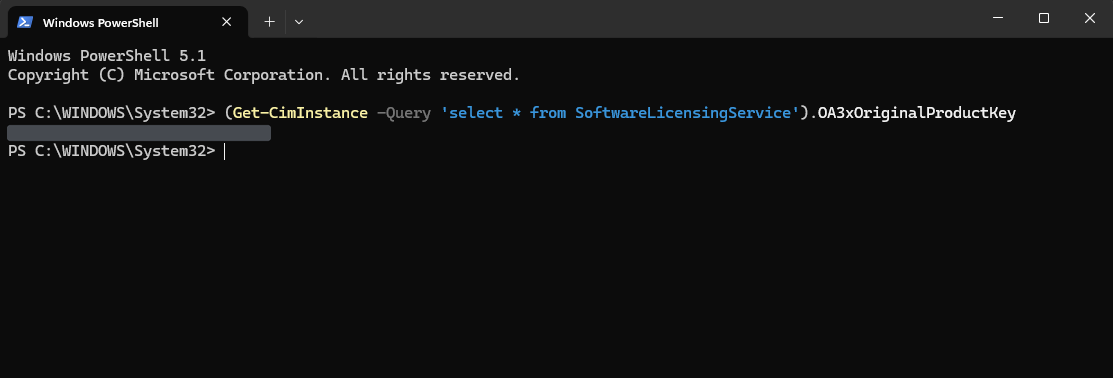
If the PC has a key in its firmware, PowerShell prints it on the next line. However, if you get an empty line, this PC has no firmware key, which is normal for a PC you built yourself or one that came without Windows.
On Windows 10 and older builds of Windows 11, this older command does the same thing from Command Prompt:
wmic path softwarelicensingservice get OA3xOriginalProductKeyHowever, newer versions of Windows 11 no longer include wmic, so use the PowerShell command there.
Also, the firmware key belongs to the edition the PC shipped with. If it shipped with Home and you later moved to Pro, the command still shows the Home key.
Method 2: Find a Windows product key you bought
- Bought online: search your inbox for the order confirmation. The key is in the email or in the order page of your account with the seller.
- Boxed copy: the key is on a card or label inside the box.
- Older PC: PCs sold with Windows 7 or earlier have a Certificate of Authenticity sticker on the case or under the battery, with the key printed on it.
Keep the key somewhere safe once you find it. After all, you can move a retail key to another PC later. For that, see how to transfer a Windows 11 license to a new PC.
Microsoft’s own support article covers the same places to look, so it’s worth a quick read too.
Method 3: Confirm which key your PC uses
Windows never shows the full installed key, but it does show the last five characters. Still, that is enough to match it against a key you have written down or found in an email.
- Press Windows + R, type
cmdand press Enter. - Then run the command below and wait for the small window.
slmgr /dli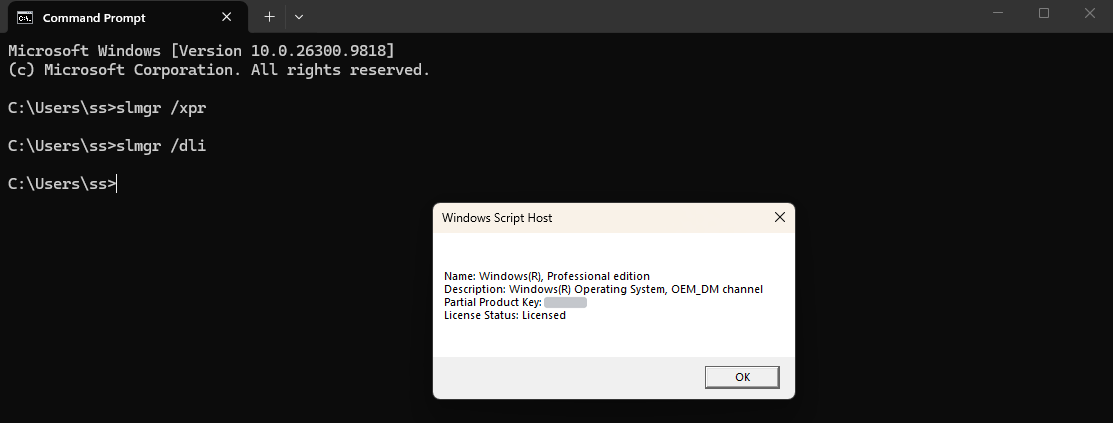
In addition, the Description line in the same window tells you the license type: RETAIL, OEM or VOLUME. More on that in retail vs OEM vs volume keys.
When there is no key to find
Many activated PCs have no personal product key at all. If the Activation page in Settings says “Windows is activated with a digital license”, Microsoft keeps the license on its activation servers against this PC’s hardware, and often against your Microsoft account too.
On these PCs, key finder tools and registry lookups return a generic key. In fact, it is the same on every PC with that edition, so it cannot activate anything. If the key you found matches one in the list of generic Windows 11 and Windows 10 keys, that is what you are looking at.
To see how your PC got its activation, follow how to check if Windows is activated.
A note on key finder tools
Third-party key finders read the same places as the commands above. They can’t recover a key that isn’t on the PC, and on a digital license they show the generic key. If you use one, download it only from the developer’s own site, since fake key finders are a common way to spread malware.
Do you need the key to reinstall Windows?
Usually not, as long as it is the same PC and the same edition:
- Firmware key: Windows setup reads it by itself and activates once the PC is online.
- Digital license: choose “I don’t have a product key” during setup and pick the same edition as before. Windows reactivates by itself after it connects to the internet.
- Retail key you typed in: have it ready. Setup will ask for it, or you can enter it afterwards on the Activation page.
On the other hand, you do need the key when you move a retail license to a different PC. You also need it after replacing the motherboard on a PC whose license isn’t on a Microsoft account.
FAQ
Can I find my full Windows product key in Settings?
No. Settings only shows the edition and the activation state, not the key.
Is the Product ID in Settings the same as the product key?
No. The Product ID on the About page identifies the installation. In other words, it can’t activate Windows.
The PowerShell command returned nothing. Is something wrong?
No. An empty result means there is no key in the firmware. Instead, the PC uses a digital license or a key that someone typed in.
Do Windows 10 and Windows 11 use different keys?
No. In fact, a key for an edition of Windows 10 also activates the same edition of Windows 11.