

How to Check if Windows Is Activated (Windows 11 and 10)
Here are three quick ways to check if Windows is activated on Windows 11 or 10. Each one also tells you a bit more, such as the license type or whether the activation is permanent.
Quick answer: how to check if Windows is activated
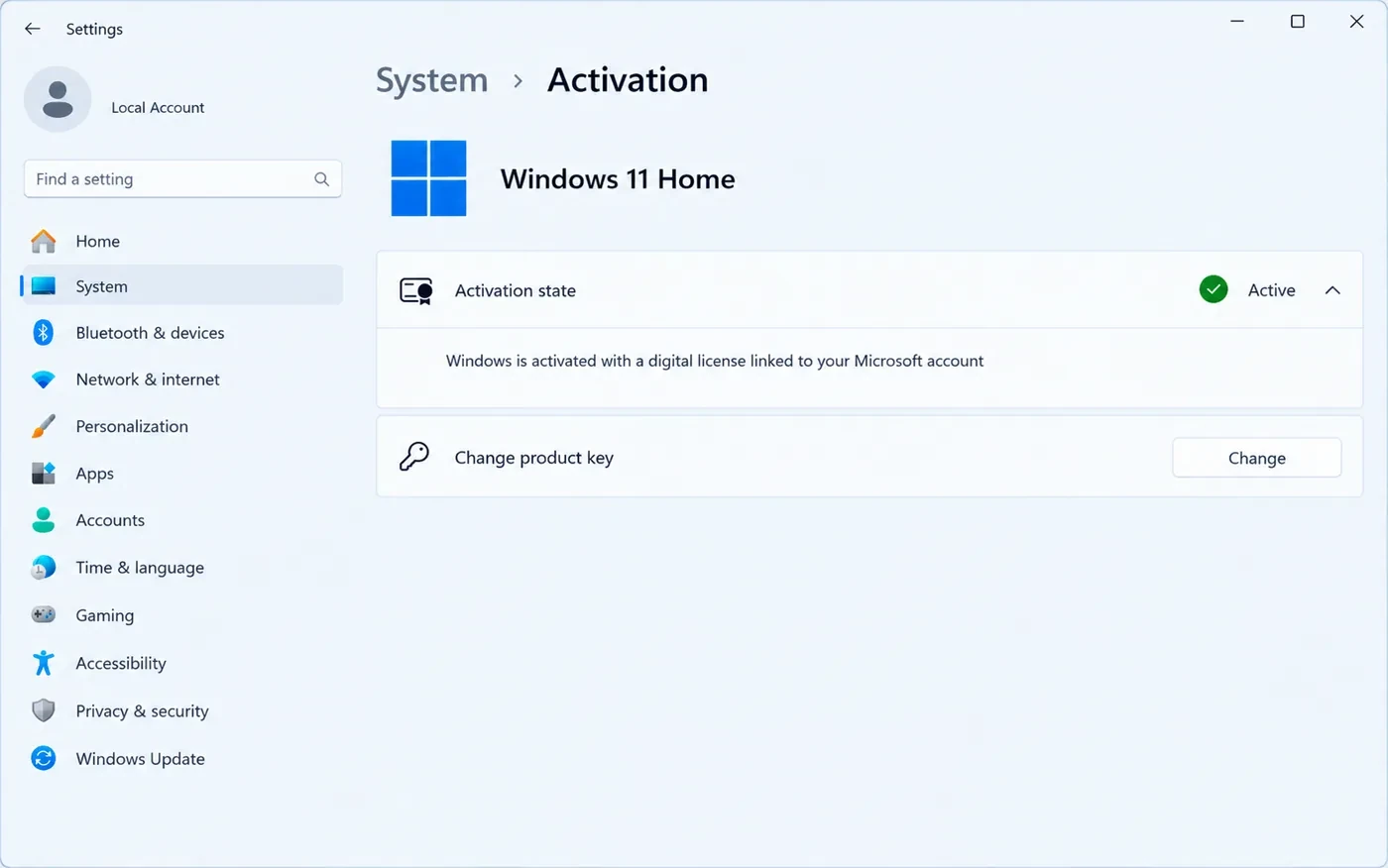
First, open Settings and go to the Activation page. The activation state at the top then tells you straight away.
- Windows 11: Settings > System > Activation
- Windows 10: Settings > Update & Security > Activation
If you see Active on Windows 11, or the Windows 10 message confirming activation, that’s all you need. However, for more detail, such as whether the license is permanent or which type it is, use the commands in Method 2 and Method 3.
Method 1: Check if Windows is activated in Settings
- First, press Windows + I to open Settings.
- Next, go to the Activation page using the path above. Alternatively, press Windows + R, type
ms-settings:activationand press Enter. - Finally, read the edition at the top and the activation state under it.
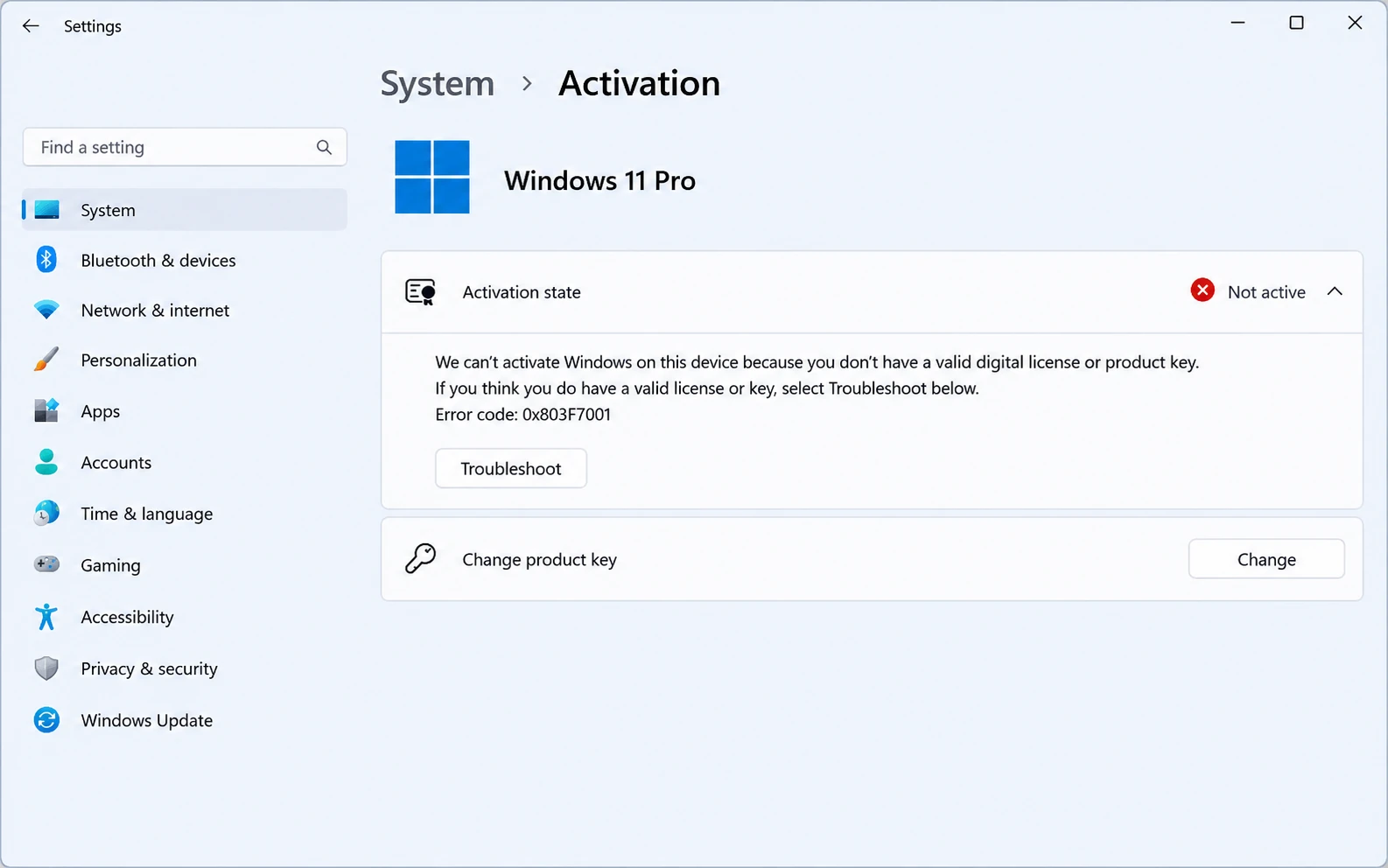
What the activation message means
| Message on the Activation page | What it means |
|---|---|
| Windows is activated with a digital license | Activated. Microsoft stores the license against this PC’s hardware, so you have no key to keep. |
| Windows is activated with a digital license linked to your Microsoft account | Activated, and your Microsoft account also holds the license. As a result, it’s easier to reactivate after a hardware change. |
| Windows is activated | Activated with a product key that someone typed in by hand. |
| Windows is activated using your organization’s activation service | Activated through a volume license. Also, it renews itself against an activation server from time to time. |
| Not active / Windows is not activated | Not activated. The page shows a message and usually an error code that says why. |
Microsoft’s own Activate Windows help page also explains these messages, so it’s a good second reference.
Method 2: Check if activation is permanent (slmgr /xpr)
Settings shows the activation state, but it doesn’t show whether the activation has an end date. This command, however, does.
- First, press Windows + R, type
cmdand press Enter. - Then type the command below and press Enter.
slmgr /xpr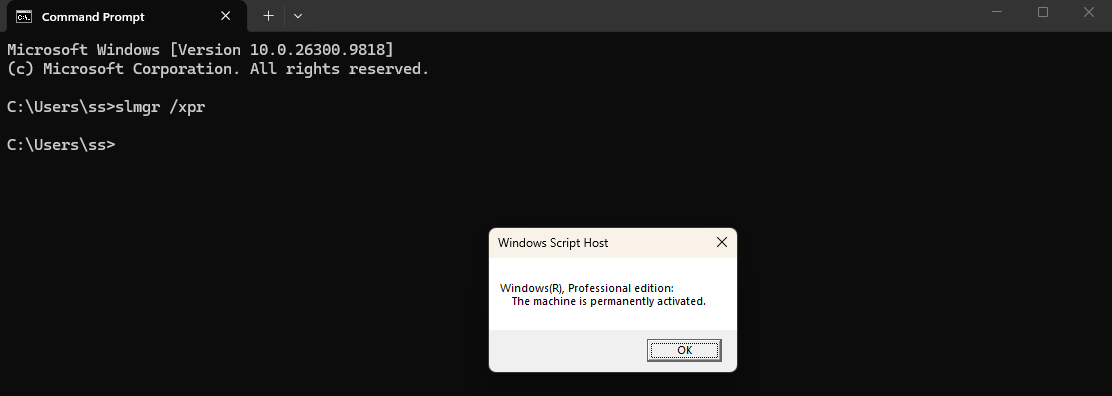
After a few seconds, a small window appears with one of these answers:
| Answer | What it means |
|---|---|
| The machine is permanently activated. | Activated with no end date. |
| Volume activation will expire, followed by a date | Activated through a volume license that must renew before that date. See “Your Windows license will expire soon”. |
| Windows is in Notification mode. | Not activated. |
Method 3: See the license type (slmgr /dli)
To see what kind of license you have, run this in the same Command Prompt window:
slmgr /dli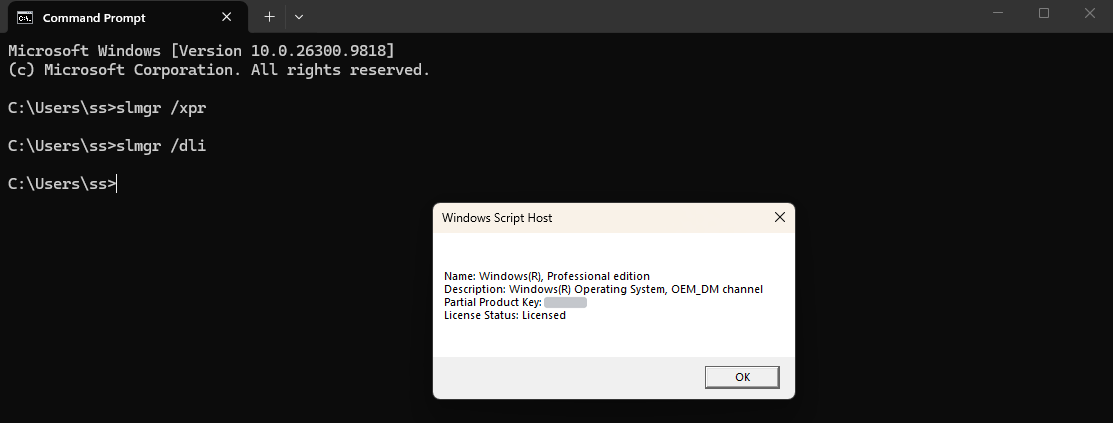
The window that appears then lists:
- Name: the Windows edition.
- Description: the license channel. Here, look for the word RETAIL, OEM or VOLUME in this line.
- Partial Product Key: the last five characters of the installed key.
- License Status: Licensed means activated. Notification means not activated.
For a longer report with the activation ID and remaining rearm count, use slmgr /dlv. For the difference between the channels, see retail vs OEM vs volume keys.
If Windows is not active
- You see the watermark in the corner of the screen: follow how to remove the “Activate Windows” watermark.
- The Activation page shows an error code: look it up in the activation guides.
- You have a key and want to use the command line: see how to activate Windows with CMD.
FAQ
Does checking the activation status change anything?
No. The Activation page and the slmgr /xpr, /dli and /dlv commands only read the status.
Why does slmgr show nothing?
The answer opens in its own small window, so it can take a few seconds. Also, check behind the Command Prompt window if you do not see it.
Can I check if Windows is activated without signing in to a Microsoft account?
Yes. In fact, all three methods work on a local account too.
Is the check the same on Windows 10 and Windows 11?
The commands are identical. In other words, only the path to the Activation page in Settings is different.