


Error 0xC004F213: No product key found on your device (how to fix it)
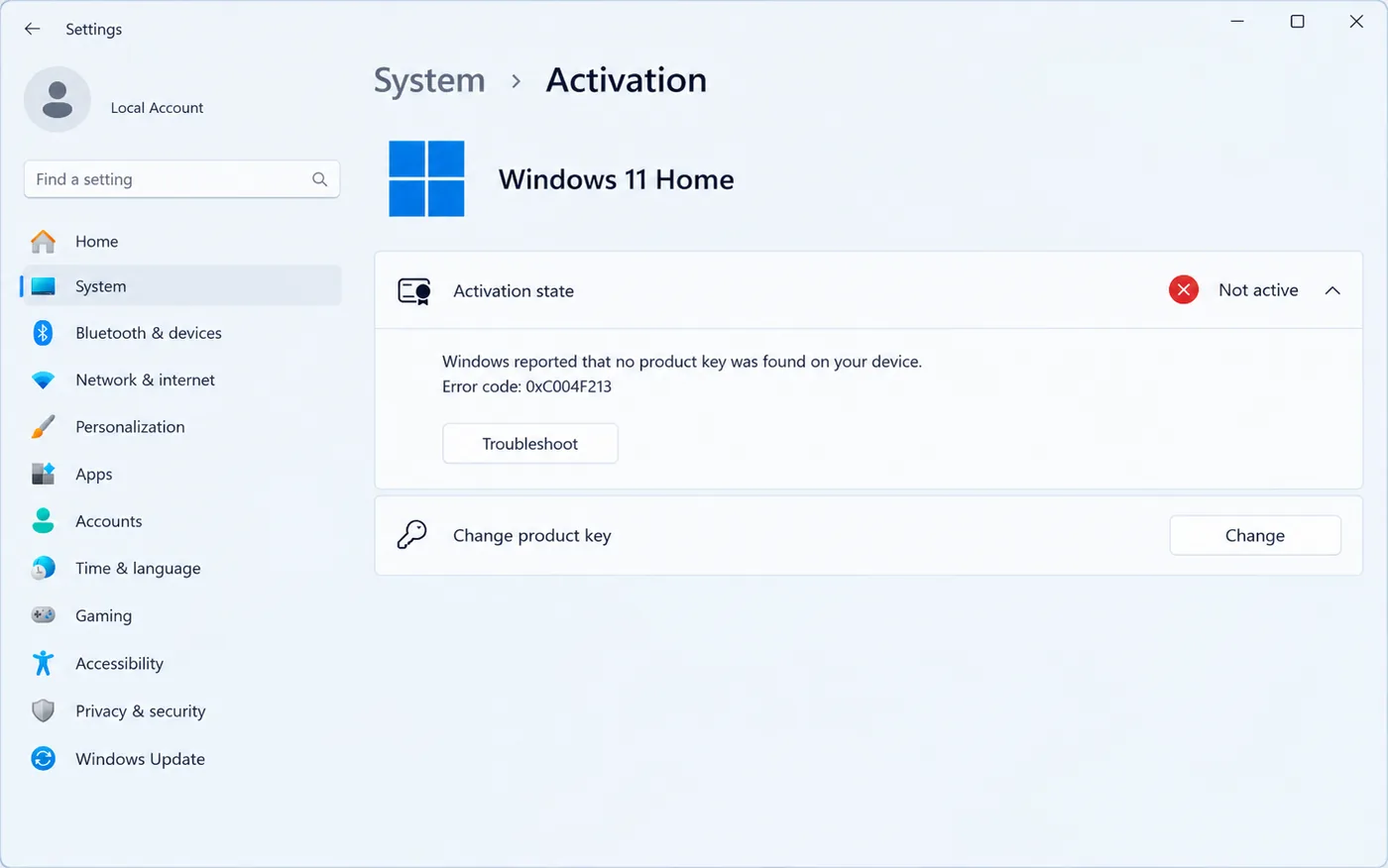
You open Settings → System → Activation and Windows says it isn’t activated:
“Windows reported that no product key was found on your device. Error code: 0xC004F213.”
This almost always appears after a big hardware change, most often a new motherboard. Your files are fine and the fix usually takes a few minutes. Here is what the error means and how to get Windows activated again.
Error 0xC004F213 means Windows couldn't find a product key or digital license for this PC, which often happens after a hardware change such as a new motherboard. If your license is linked to your Microsoft account, reactivate it through the Activation troubleshooter. Otherwise, enter your product key and make sure your Windows edition matches it.
Watch: fix error 0xC004F213 step by step
Prefer watching? This video shows the error, why a motherboard change causes it, the Activation troubleshooter with your Microsoft account, re-entering your key (or slmgr /ipk and /ato), and the edition check.
Watch on the KRBKeys YouTube channel →
Short on time? Watch the short version
The same fix in a quick vertical video made for phones. Open it on YouTube Shorts →
What does Windows activation error 0xC004F213 mean?
A Windows license is linked to the hardware it was activated on. When Windows starts up on hardware it doesn’t recognise, it looks for a matching license and finds none, so it shows 0xC004F213. Common triggers:
- You replaced the motherboard (or the PC was repaired and the board was swapped). This is the usual cause.
- You moved your Windows drive to a new PC.
- Windows came preinstalled (OEM) and is now running on different hardware. Preinstalled licenses stay with the original PC.
Smaller changes such as a new drive, more RAM or a new graphics card normally don’t trigger it.
Fix 1: Reactivate with your Microsoft account
If you signed in to Windows with a Microsoft account before the hardware change, your digital license is linked to that account and you can move it across:
- Sign in to Windows with the same Microsoft account you used before the change.
- Go to Settings → System → Activation and click Troubleshoot.
- Choose I changed hardware on this device recently and sign in when asked.
- Pick your PC from the list, tick This is the device I’m using right now and click Activate.
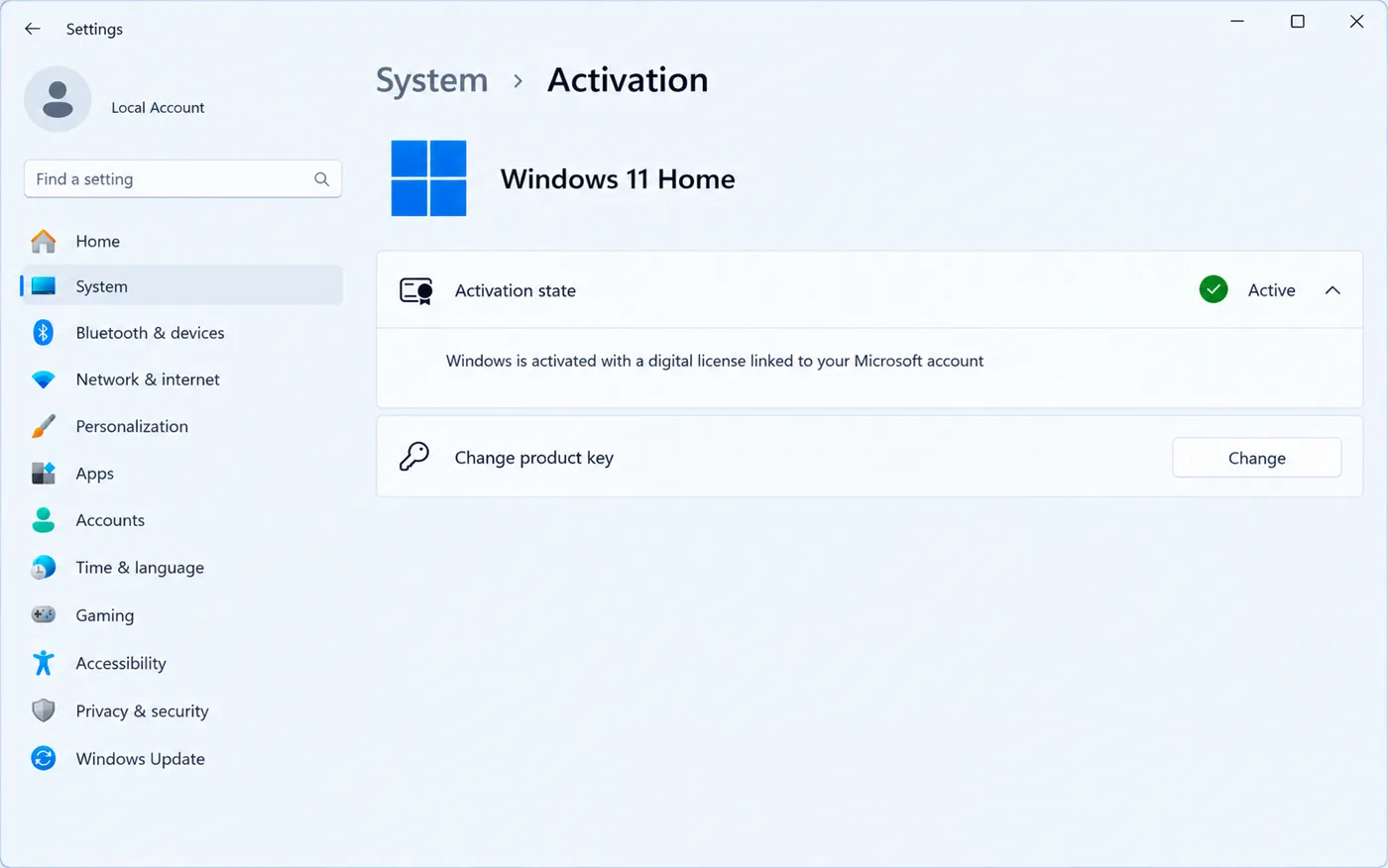
If your PC isn’t in the list, the license wasn’t linked to your account. Go to Fix 2.
Fix 2: Enter your product key
A retail key can be moved to new hardware, one PC at a time. Enter it again on the new setup:
- Go to Settings → System → Activation and click Change product key.
- Type the 25-character key (it’s in your order email if you bought it from us) and click Next, then Activate.
If the Settings page won’t accept it, use Command Prompt as administrator:
- Click Start, type
cmd, right-click Command Prompt and choose Run as administrator. - Run
slmgr /ipk XXXXX-XXXXX-XXXXX-XXXXX-XXXXXwith your key. - Run
slmgr /atoto activate.
If you see “key already in use” or 0xC004C008, the key is still active on the old hardware. Our license transfer guide explains how to move it.
Fix 3: Check your Windows edition
A Pro key only activates Windows Pro, and a Home key only activates Home. Check what is installed under Settings → System → About (look at Edition). If you reinstalled the wrong edition, reinstall the one your key is for, or upgrade Home to Pro with a Pro key from the Activation page.
If you don’t have a key
If Windows came preinstalled on your old PC and you never had a separate key, that license can’t move to the new motherboard. You need a new license for the new hardware. A retail key is the better choice here, because you can move it again the next time you upgrade.
Get Windows activated again with a genuine retail key
A retail license isn’t locked to one motherboard. Activate it online now and move it to your next PC when you upgrade.
- ✔ Windows 11 Pro keys are delivered instantly by email
- ✔ Online activation, no phone call needed
- ✔ Free help if activation doesn’t go through
Frequently asked questions
Will I lose my files because of 0xC004F213?
No. The error is only about the license. Your files, apps and settings stay where they are, and they stay that way after you activate.
Can I keep using Windows without activating?
For a while, yes, but you will see an “Activate Windows” watermark and you can’t change personalisation settings such as the wallpaper until it is activated.
Does a new hard drive or SSD cause this error?
Usually not. Windows ties the license mostly to the motherboard. A new drive with a fresh install activates again on its own if the license was a digital license on the same PC.
My repair shop replaced the motherboard. Do I need a new license?
If you had a retail key or a digital license linked to your Microsoft account, try Fix 1 and Fix 2 first. If Windows was preinstalled and never linked to an account, you may need a new license.