


Error 0x803F7001: Windows can’t find a valid license (how to fix it)
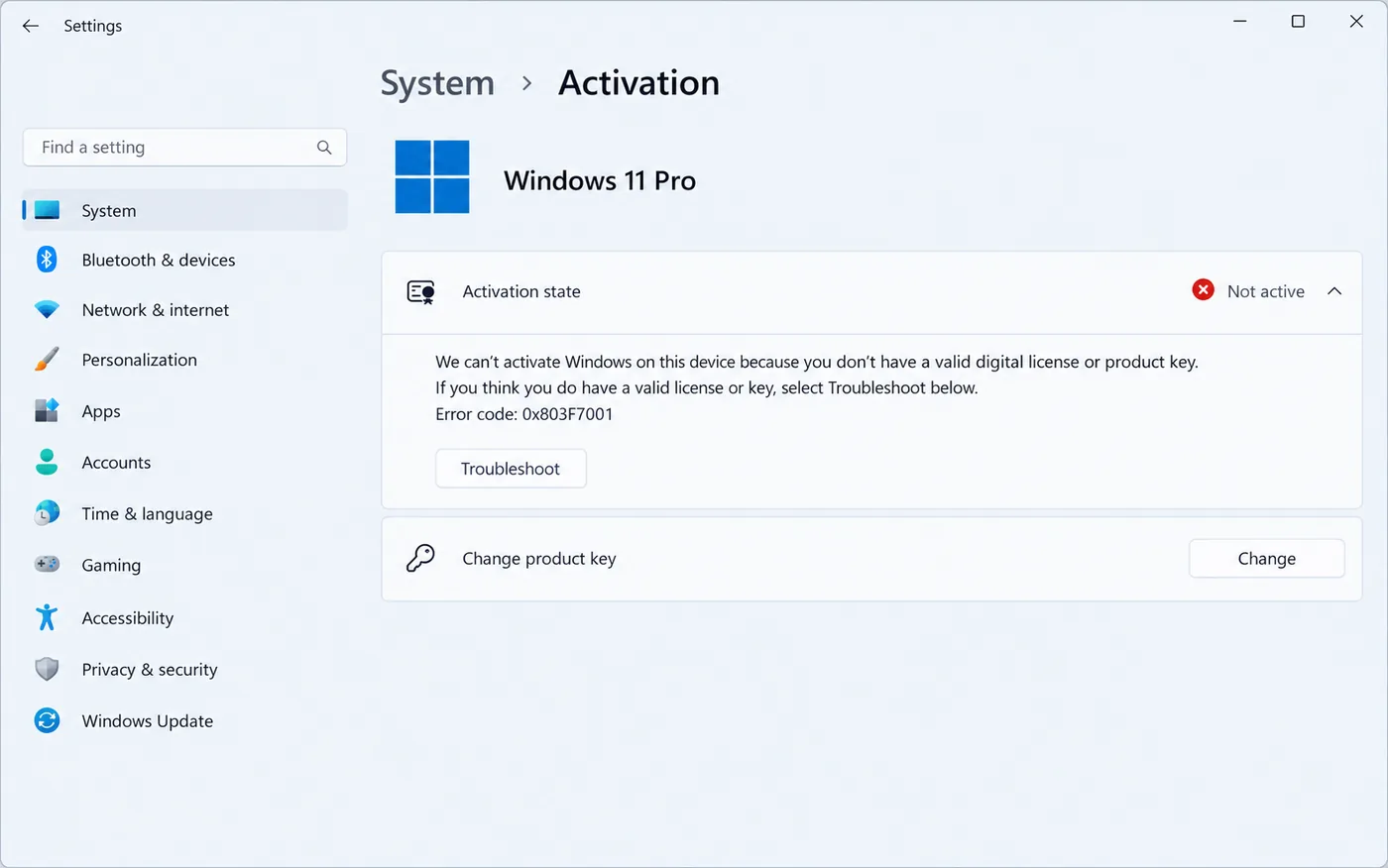
Windows isn’t activated, and Settings → System → Activation shows:
“We can’t activate Windows on this device because you don’t have a valid digital license or product key. Error code: 0x803F7001.”
In plain words, Windows looked for a license for this PC and couldn’t find one. That usually happens after a clean install, a hardware change, or when the wrong edition of Windows was installed. Here is how to work out which one applies to you and fix it.
Error 0x803F7001 means Windows couldn't find a valid license for this PC, usually after a clean install, a hardware change or an edition switch. Run the Activation troubleshooter first. If that doesn't help, enter a product key that matches your edition (Home or Pro). After a hardware change, choose "I changed hardware on this device recently" in the troubleshooter.
Watch: fix error 0x803F7001 step by step
Prefer watching? This video shows the error, the four causes and all four fixes, including the slmgr commands and the hardware-change steps.
Watch on the KRBKeys YouTube channel →
Short on time? Watch the short version
The same fix in a quick vertical video made for phones. Open it on YouTube Shorts →
Why you see 0x803F7001: no digital license or product key found
Microsoft lists four common reasons:
- Windows was installed on this PC for the first time and no product key was entered. A new PC or a self-built PC needs its own license.
- The hardware changed, usually the motherboard, so the old license no longer matches.
- The wrong edition was installed, for example Windows Pro on a PC whose license is for Home.
- Rarely, a preinstalled PC left the factory without its key stored correctly.
Fix 1: Run the Activation troubleshooter
If this PC was activated before, the troubleshooter can often find its digital license and reactivate it:
- Connect to the internet.
- Go to Settings → System → Activation (on Windows 10: Settings → Update & Security → Activation).
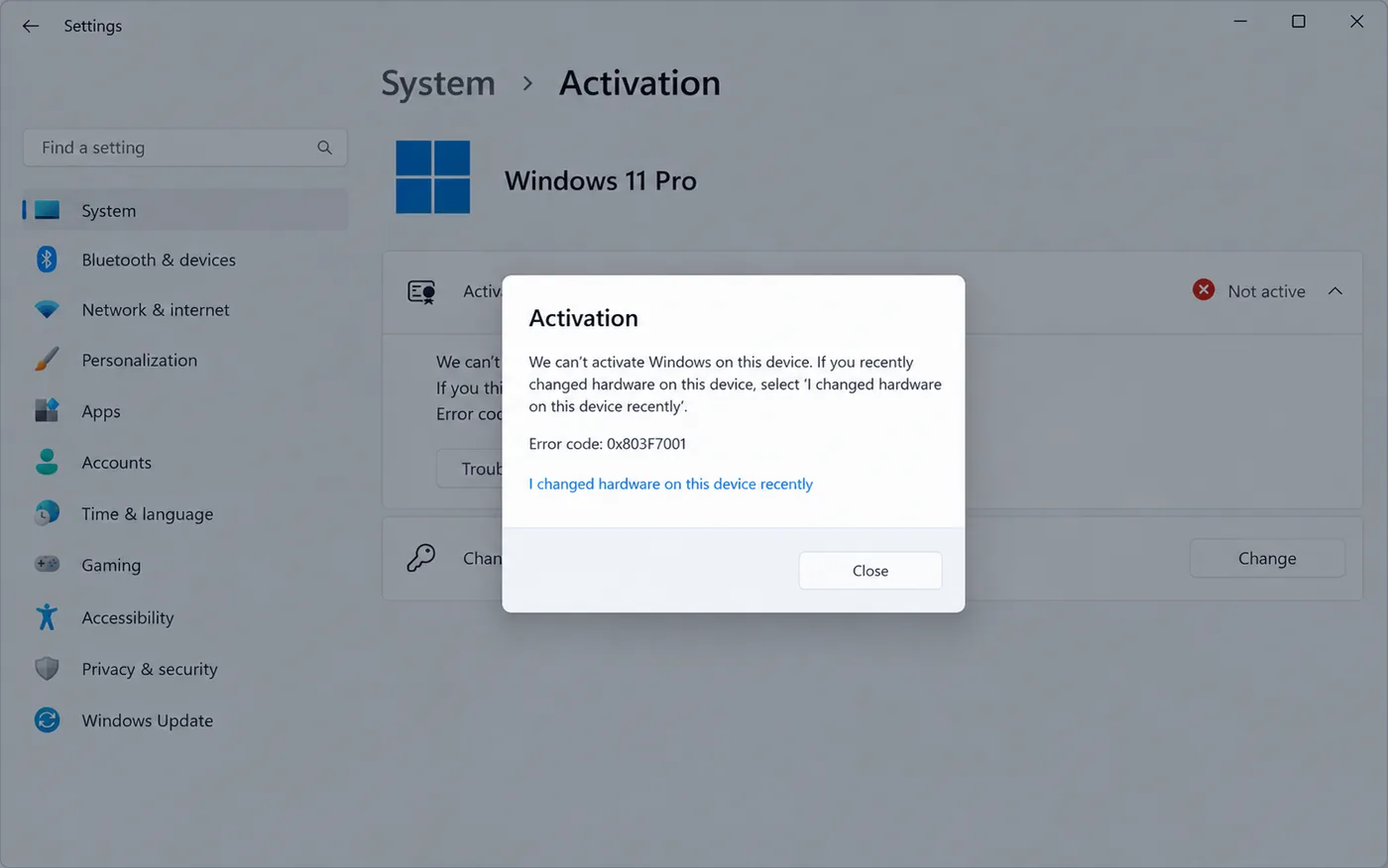
- Click Troubleshoot and wait for it to finish. If it finds a license, it activates Windows or tells you which edition to install.
Fix 2: Enter a product key
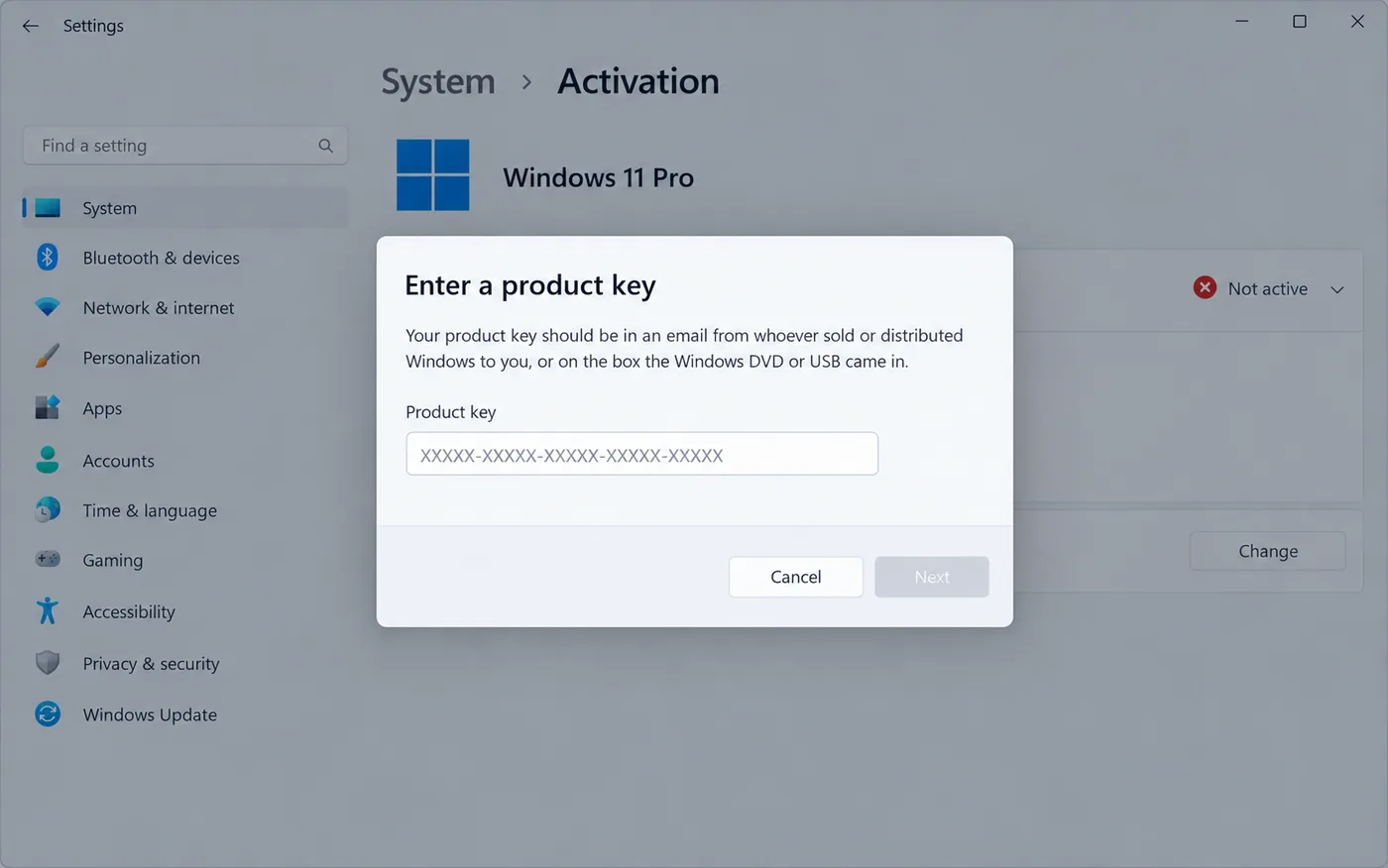
If you have a key (in your order email, on a sticker, or in the box), enter it:
- On the Activation page, click Change product key.
- Type the 25-character key and click Next, then Activate.
Or from Command Prompt as administrator: slmgr /ipk XXXXX-XXXXX-XXXXX-XXXXX-XXXXX, then slmgr /ato.
If the key is refused with a different code, see 0xC004F050 (key didn’t work) or 0xC004C008 (key already in use).
Fix 3: Make sure the edition matches
Open Settings → System → About and look at Edition. Your license has to match it:
- Pro installed, but the PC came with Home: either reinstall Windows Home (it then activates on its own), or keep Pro and activate it with a Windows Pro key.
- Home installed, but you have a Pro key: enter the Pro key under Change product key. Windows upgrades to Pro and keeps your files and apps. If that upgrade fails, see error 0x803FA067.
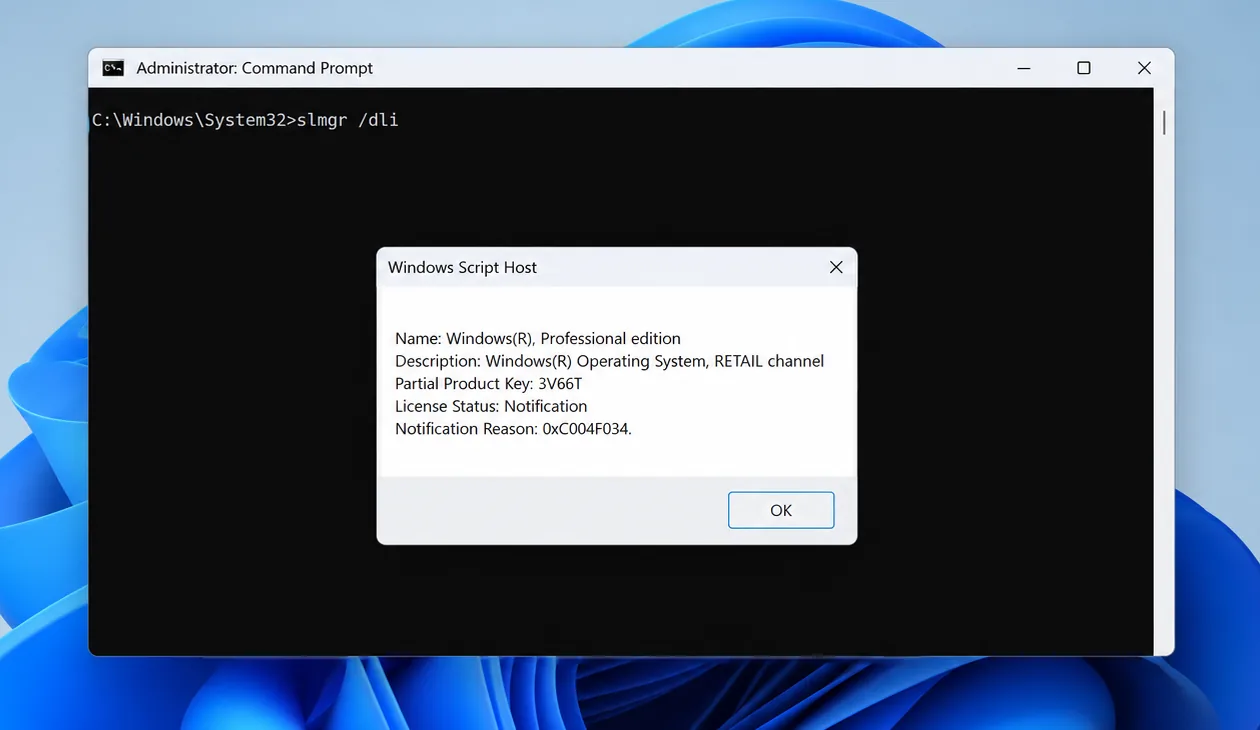
You can also check from the command line: open Command Prompt as administrator and run slmgr /dli. The Name line shows the installed edition, and Description shows the license channel (RETAIL, OEM or VOLUME).
Fix 4: After a hardware change
If you replaced the motherboard, sign in with the Microsoft account you used before the change, then run the troubleshooter and choose I changed hardware on this device recently. Our 0xC004F213 guide walks through this in detail. A preinstalled (OEM) license can’t move to a new motherboard, so in that case you need a new license.
Need a license for this PC?
A genuine retail key activates online in seconds on a new, rebuilt or reinstalled PC, and you can move it to your next PC later.
- ✔ Windows 11 Pro keys are delivered instantly by email
- ✔ Works for clean installs and upgrades from Home
- ✔ Free help if activation doesn’t go through
Frequently asked questions
I reinstalled Windows on the same PC. Why isn’t it activated?
If you reinstalled the same edition on the same hardware, it normally activates by itself once you are online. Give it a few minutes, then run the troubleshooter. If it still fails, the edition you installed probably doesn’t match your license.
Is 0x803F7001 the same on Windows 10 and Windows 11?
Yes. The code and the fixes are the same on both. Only the path to the Activation page is slightly different.
Can I use my Windows 10 key on Windows 11?
In most cases, yes. A valid Windows 10 Home or Pro key activates the matching edition of Windows 11.
Do I lose anything by activating later?
No. You can install now and activate later. Until then you will see a watermark and personalisation settings are locked.