


How to Fix Windows 11 Activation Error 0xC004F050
How to Fix Windows 11 Activation Error 0xC004F050
You bought a Windows 11 key, entered it in Settings, and got error 0xC004F050 instead of "Windows is activated." Don't worry: this is one of the most common activation errors, and in most cases it's fixed in a few minutes without contacting anyone.
Get a genuine keyIn Settings the message reads: "The product key you entered didn't work. Check the product key and try again, or try a different one. (0xC004F050)". If you install the key from Command Prompt with slmgr /ipk, the same error appears as "Error: 0xC004F050 The Software Licensing Service reported that the product key is invalid." Both mean the same thing, and the fixes below work for both.
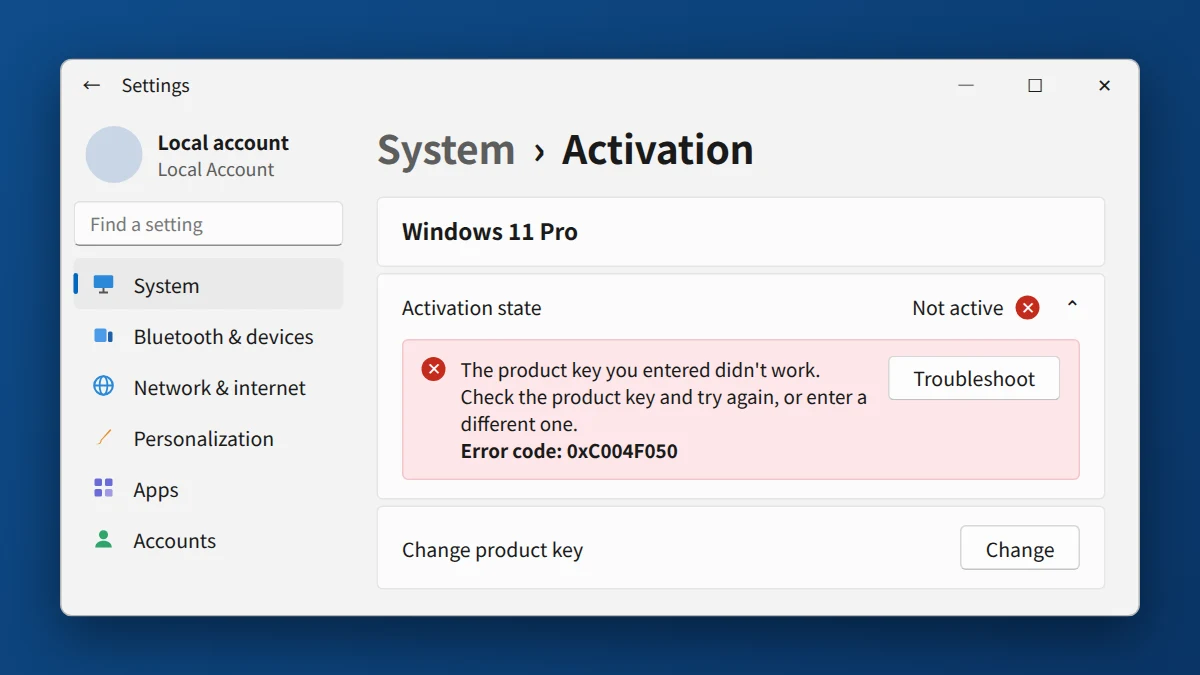
Error 0xC004F050 means Windows didn't accept the product key you entered, most often because of a typing mistake or because the key is for a different edition than the Windows you have installed. Copy and paste the key instead of typing it, and check that your edition (Home or Pro) matches the key. If it still fails, install the key from an administrator Command Prompt, restart, and try again later before contacting the seller.
Watch: fix error 0xC004F050 step by step
Prefer watching? This video shows the error, the five causes, the quick character check and all five fixes, including slmgr /ipk and slmgr /ato.
Watch on the KRBKeys YouTube channel →
Short on time? Watch the short version
The same fix in a quick vertical video made for phones. Open it on YouTube Shorts →
What does 0xC004F050 "the product key is invalid" mean?
Error 0xC004F050 means Windows didn't accept the product key you entered. Windows checks the key before activating it, and this error appears when the key doesn't pass that check. Most of the time the key itself is fine and the problem is how it was entered or which edition of Windows it was entered on.
Why your product key didn't work: causes of 0xC004F050
- A typing mistake. One wrong character is enough, for example typing 8 instead of B.
- Extra spaces or hidden characters copied along with the key from an email or PDF.
- The key is for a different edition. For example, a Windows 11 Home key entered on Windows 11 Pro.
- The key is for a different product, such as an Office key or a key for an older Windows version.
- Busy activation servers right after installing or upgrading Windows. Waiting a little and trying again often works.
💡 Quick check: letters that never appear in a Windows key
Windows product keys only use these characters: B C D F G H J K M P Q R T V W X Y 2 3 4 6 7 8 9, plus at most one N. They never contain A, E, I, L, O, S, U, Z, 0, 1 or 5. If the key you typed has one of these, you've found the mistake. Most often it's a B that should be an 8, or the other way around.
How to fix 0xC004F050 when your Windows 11 product key is not working
1. Re-enter the key by copying and pasting it
Go to Settings → System → Activation → Change product key. Instead of typing, copy the key from your delivery email and paste it. Make sure there's no space before or after it. Windows adds the dashes automatically.
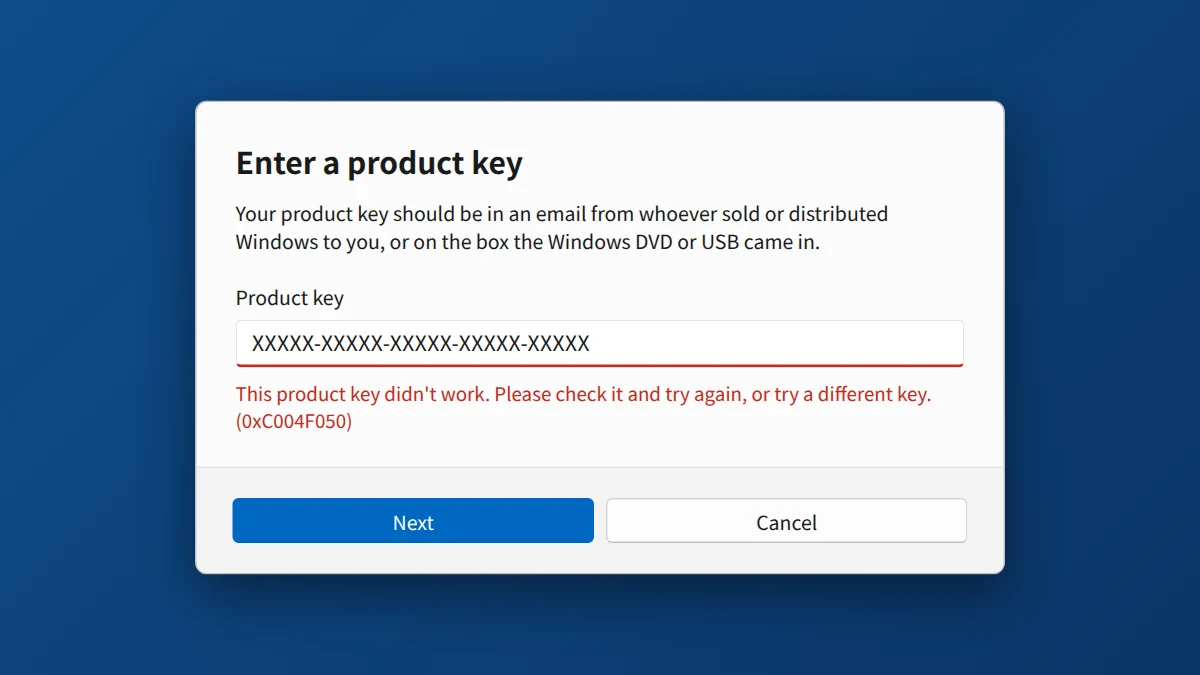
2. Check that your Windows edition matches the key
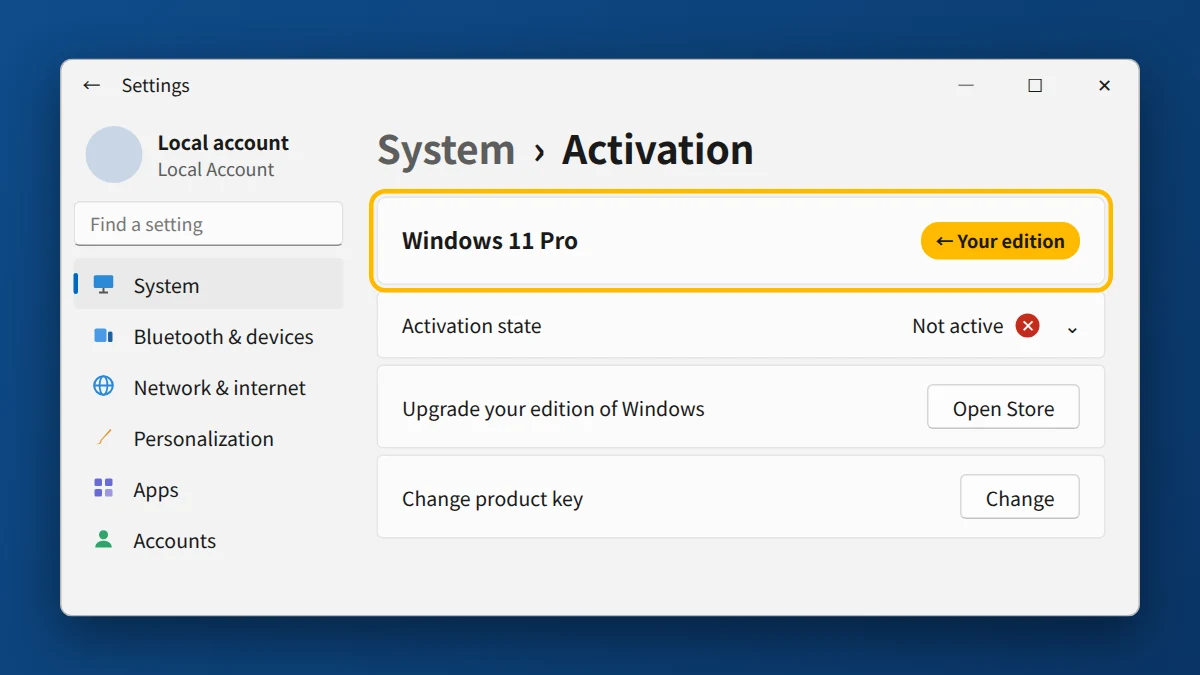
On the same Activation page, look at the edition shown at the top: Windows 11 Home or Windows 11 Pro. A Pro key needs Windows 11 Pro, and a Home key needs Windows 11 Home. If you're on Home with a Pro key, Windows will offer to upgrade the edition when you enter it. If you're on Pro with a Home key, you'll need a Pro key instead.
3. Install the key with Command Prompt
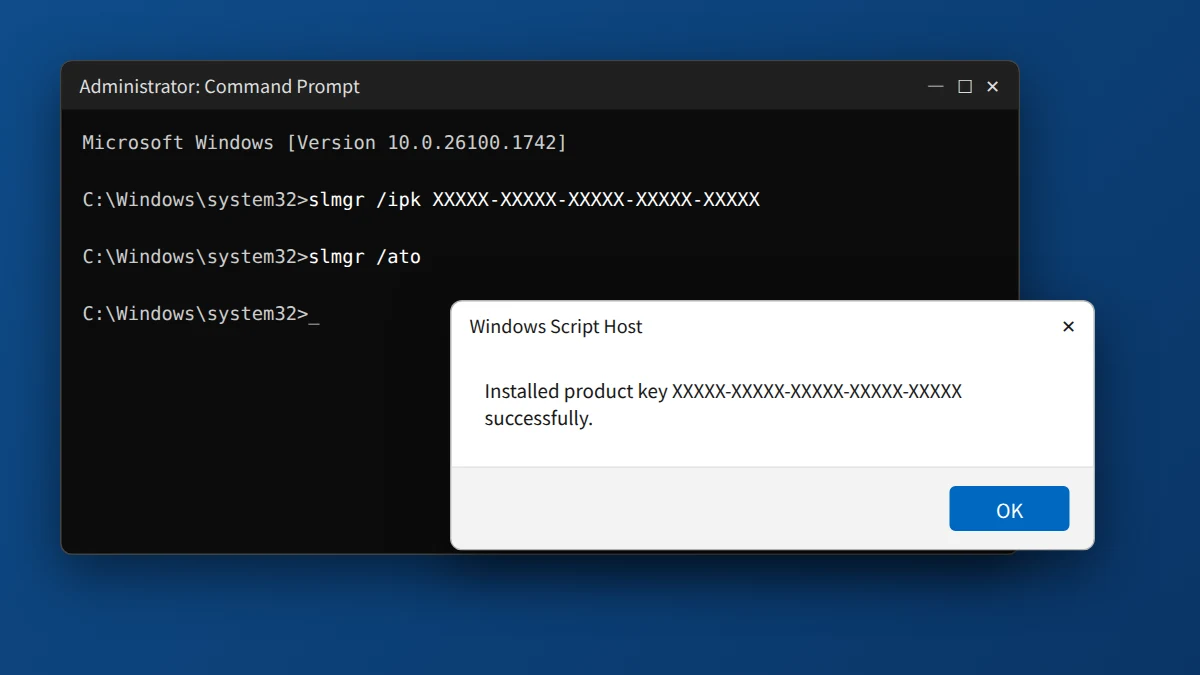
If Settings keeps refusing the key, try it through Command Prompt, which often works when the Settings page doesn't:
- Click Start, type cmd, right-click Command Prompt, and choose Run as administrator.
- Type this, replacing the X's with your key, and press Enter:
slmgr /ipk XXXXX-XXXXX-XXXXX-XXXXX-XXXXX - Wait for the "Installed product key successfully" message, click OK, then type this and press Enter:
slmgr /ato - You should see "Product activated successfully." Restart your PC.
4. Restart and try again later
If you just installed or upgraded Windows, the activation servers may be busy. Restart your PC, make sure you're connected to the internet, and try again after a few hours. You can also run the troubleshooter: Settings → System → Activation → Troubleshoot.
5. Still not working? Contact the seller
If the key is entered correctly, matches your edition, and still gets 0xC004F050, contact the seller with a screenshot of the error. A genuine seller will check the key and replace it if needed.
0xC004F050 when upgrading Windows 11 Home to Pro
If your PC runs Windows 11 Home and you enter a Pro key, Windows first has to change the edition from Home to Pro. On some PCs that step fails and you get 0xC004F050 (or 0x803FA067), even though your Pro key is fine. The fix is to change the edition first, then activate:
- Save your work and disconnect from the internet.
- Go to Settings → System → Activation → Change product key and enter Microsoft's generic Pro key
VK7JG-NPHTM-C97JM-9MPGT-3V66T. This key only changes the edition. It does not activate Windows. - Click Start when asked to upgrade. The PC restarts a few times, and your files and apps stay where they are.
- Reconnect to the internet, go back to Change product key and enter your own Pro key to activate.
Step-by-step screenshots and the Command Prompt alternative are in our guide to upgrading Windows 11 Home to Pro (error 0x803FA067).
If You Bought Your Key From KRBKeys
Send us your order number, a screenshot of the error, and the Windows edition shown on your Activation page through our contact page or Live Chat. We typically reply within 1–6 hours, and if the key is at fault, we replace it at no cost. Never post your full key publicly; if asked, share only the last 5 characters.
Need a Windows 11 key that works?
Genuine retail keys, fast email delivery, and a free replacement if activation fails.
Frequently Asked Questions
Does error 0xC004F050 mean my key is fake?
Usually not. In most cases the key was typed wrong, pasted with extra spaces, or entered on the wrong edition of Windows. Try the steps above before assuming the key is bad.
Can I use a Windows 11 Home key on Windows 11 Pro?
No. A Home key only activates Windows 11 Home. To activate Windows 11 Pro, you need a Pro key.
Will changing the product key delete my files?
No. Changing the key only changes the license. Your files, apps and settings stay where they are.
Does a Windows 10 key work on Windows 11?
Yes, a genuine Windows 10 key of the same edition (Home or Pro) can activate Windows 11 on a PC that meets the Windows 11 requirements.
How is 0xC004F050 different from 0xC004C060 or 0xC004C008?
0xC004F050 means Windows didn't accept the key as entered. 0xC004C060 means Microsoft's server blocked the key, and 0xC004C008 means the key is already in use on another PC.
What does "The Software Licensing Service reported that the product key is invalid" mean?
It's how Command Prompt shows error 0xC004F050. Windows rejected the key as typed. Check every character, make sure the key matches your edition (Home or Pro), and run slmgr /ipk again with the key pasted in.
Why do I get 0xC004F050 when upgrading from Home to Pro?
Windows has to switch the edition before it can use a Pro key, and that switch sometimes fails. Change the edition first with Microsoft's generic Pro key, then activate with your own key. See 0xC004F050 when upgrading Windows 11 Home to Pro above.
Can 0xC004F050 happen on Windows 10?
Yes. Windows 10 shows the same error for the same reasons, and the same fixes apply: paste the key, match the edition, or install it with slmgr /ipk.