


How to Fix Windows 11 Error 0x803FA067 (Can’t Upgrade Home to Pro)
How to Fix Windows 11 Error 0x803FA067 (Can’t Upgrade Home to Pro)
You bought a Windows 11 Pro key to upgrade from Windows 11 Home, entered it in Settings, and got "We can't upgrade your edition" with error 0x803FA067. This is one of the most common problems when upgrading from Home to Pro, and there's a reliable method that fixes it in most cases, usually in under 20 minutes.
Get a genuine key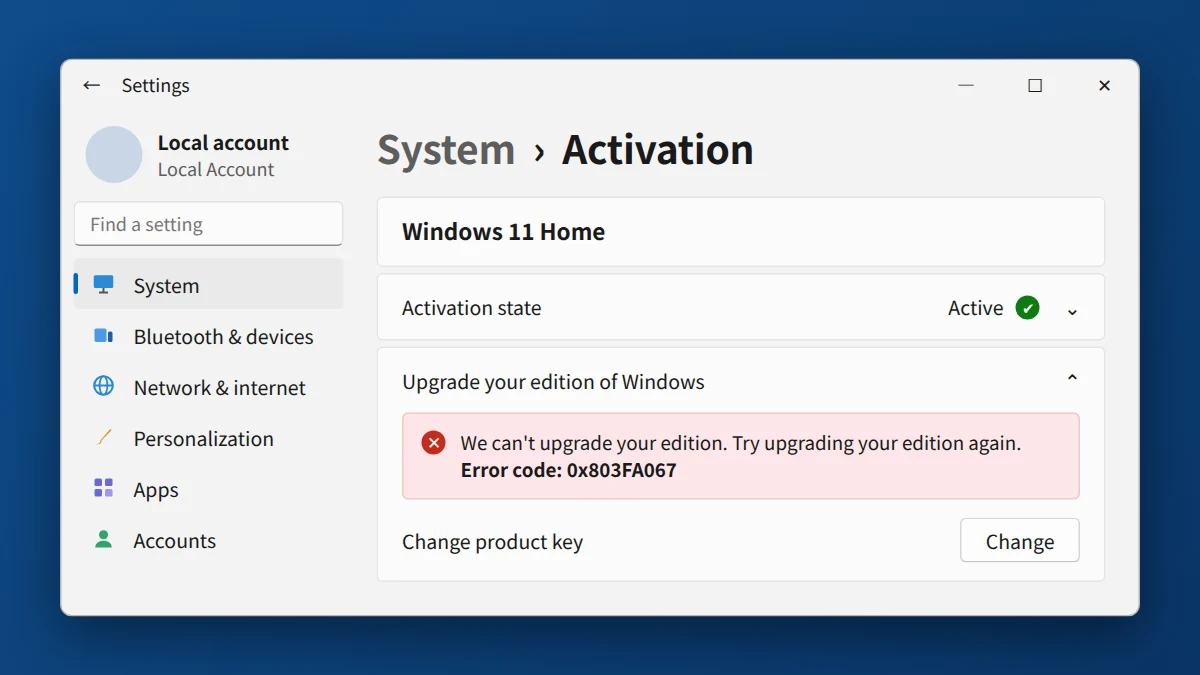
Error 0x803FA067 means Windows couldn't switch from Windows 11 Home to Pro with the key you entered, and the key itself is usually fine. Install all Windows updates and make sure the PC isn't in S mode. Then upgrade the edition first with Microsoft's generic Pro key, and once Pro is installed, activate it with your own Pro key in Settings → System → Activation.
Watch: fix error 0x803FA067 step by step
Prefer watching? This video shows why the upgrade fails, the four causes and all five steps, including the generic Pro key method and changepk.exe.
Watch on the KRBKeys YouTube channel →
Short on time? Watch the short version
The same fix in a quick vertical video made for phones. Open it on YouTube Shorts →
What does error 0x803FA067 mean when upgrading Windows 11 Home to Pro?
Error 0x803FA067 means Windows couldn't switch your PC from Windows 11 Home to Windows 11 Pro using the key you entered. Upgrading is a two-part process: Windows first has to install the Pro edition, and then activate it with your key. This error happens during the first part, so in most cases your Pro key is fine. Windows just needs a different way to install the Pro edition before the key can be used.
What causes error 0x803FA067?
- Windows tries to upgrade and activate in one step and fails. This is the most common cause, especially when Home came pre-installed with the PC.
- Your PC is in S mode. Windows 11 Home in S mode can't be upgraded until you switch out of S mode.
- Pending Windows updates that block the edition change.
- The key isn't a Windows 11 or Windows 10 Pro key, for example an Enterprise, Education, or Home key.
How to fix 0x803FA067 and upgrade Windows 11 Home to Pro
1. Check your edition and S mode
Go to Settings → System → Activation and confirm the top says Windows 11 Home. If you see "Windows 11 Home in S mode," switch out of S mode first: open the Microsoft Store, search for "Switch out of S mode," and click Get. It's free and takes a minute.
2. Install all Windows updates
Go to Settings → Windows Update, install everything available, and restart your PC. Then try entering your Pro key again. If you still get 0x803FA067, continue with step 3.
3. Upgrade the edition first with Microsoft's generic Pro key
This is the method that fixes the error in most cases. Microsoft provides a generic Windows Pro key that only changes the edition from Home to Pro. It does not activate Windows. You'll activate with your own key in step 4.
- Save your work and disconnect from the internet (turn off Wi-Fi or unplug the cable).
- Go to Settings → System → Activation → Change product key.
- Enter this generic Pro key:
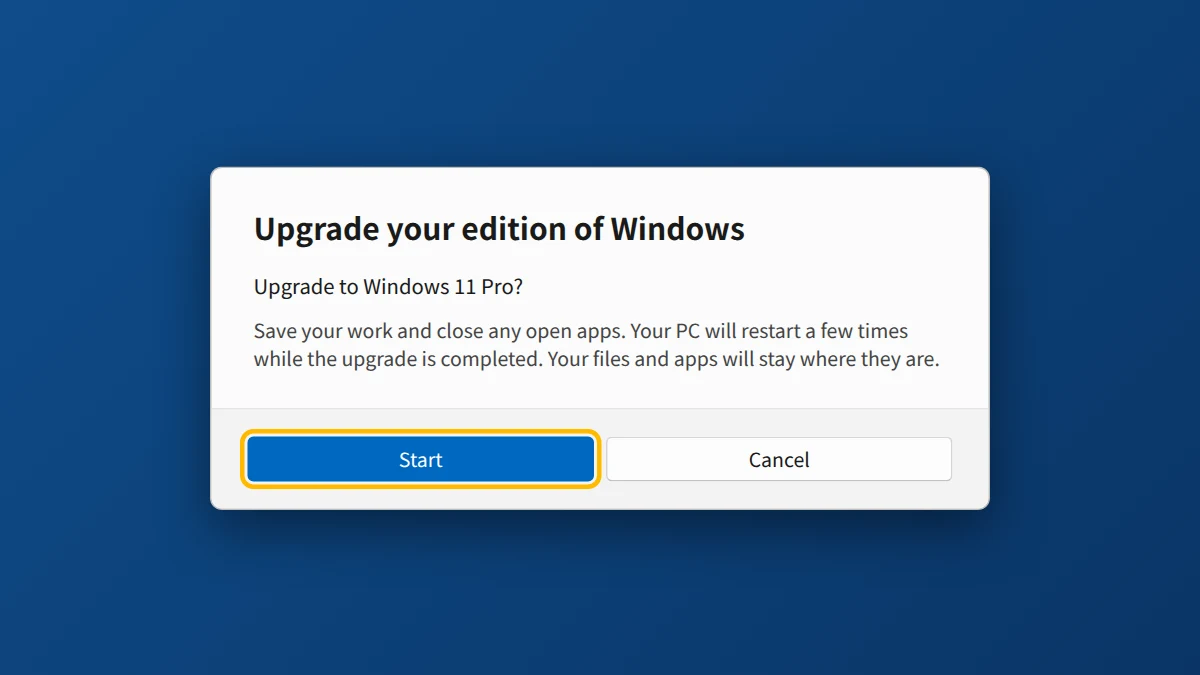
VK7JG-NPHTM-C97JM-9MPGT-3V66T - Click Next, then Start when asked to upgrade your edition.
- Your PC restarts a few times. Your files and apps stay where they are.
Settings not working? Open Command Prompt as administrator and run this command instead, which does the same edition upgrade:changepk.exe /ProductKey VK7JG-NPHTM-C97JM-9MPGT-3V66T
4. Activate with your own Pro key
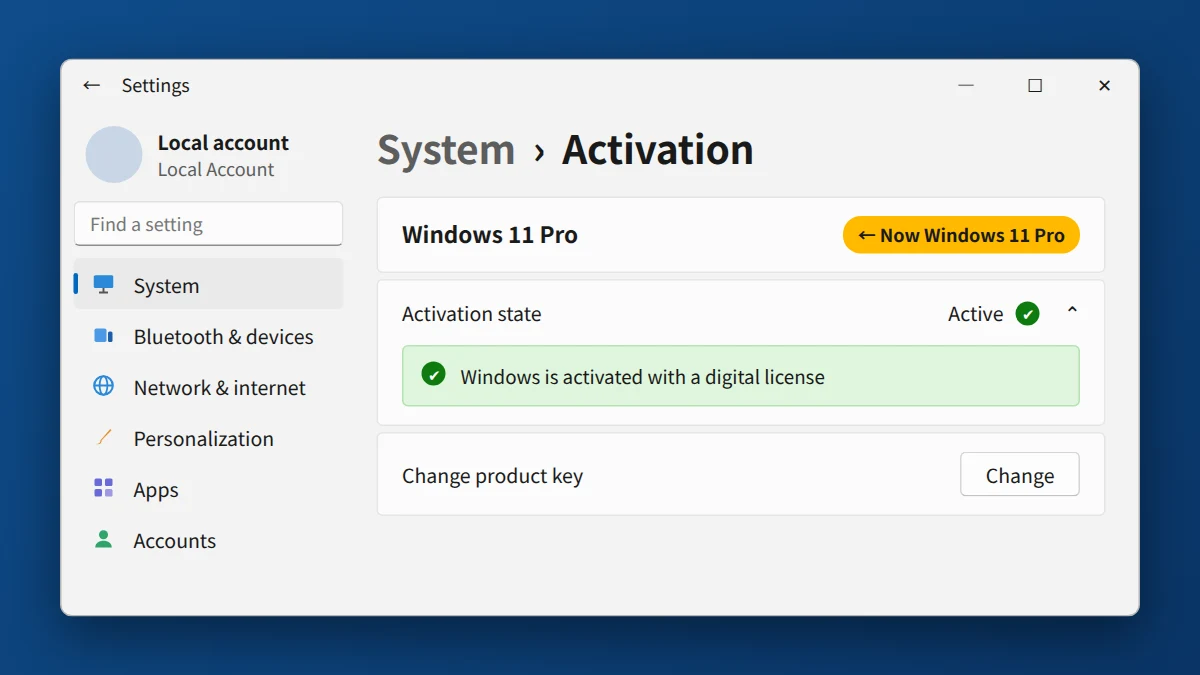
After the upgrade, Settings will show Windows 11 Pro but "not activated." That's expected. Reconnect to the internet, go to Settings → System → Activation → Change product key, and enter your own Windows 11 Pro key from your delivery email. Click Next, then Activate.
If activation gives a different error, such as 0xC004F050 (key didn't work) or 0xC004C008 (key already in use), see those guides.
5. Still not working? Contact the seller
If none of these steps work, contact the seller with a screenshot of the error and the edition shown on your Activation page. A genuine seller will help you finish the upgrade or check the key.
If You Bought Your Key From KRBKeys
Send us your order number, a screenshot of the error, and the edition shown on your Activation page through our contact page or Live Chat. We typically reply within 1–6 hours and will guide you through the upgrade, or replace the key if it's at fault.
Upgrading from Home to Pro?
Get a genuine Windows 11 Pro retail key with instant email delivery, and free help if the upgrade doesn't go through.
Get Windows 11 Pro Key →Frequently Asked Questions
Is it safe to use the generic Pro key?
Yes. It's a default key published by Microsoft that only changes your edition to Pro. It never activates Windows, so you still need your own genuine Pro key afterwards.
Will upgrading from Home to Pro delete my files?
No. The upgrade keeps your files, apps and settings. It's still a good idea to back up important files before any system change.
Can I use a Windows 10 Pro key to upgrade Windows 11 Home?
Yes. A genuine Windows 10 Pro key can upgrade and activate Windows 11 Pro on a PC that meets the Windows 11 requirements.
Why does Windows say "not activated" after the upgrade?
Because the generic key only installs the Pro edition. Enter your own Pro key in step 4 to activate it.
Can I go back to Windows 11 Home?
There's no simple downgrade button. Going back to Home requires a clean reinstall of Windows 11 Home, so make sure you want Pro before upgrading.