


Excel or Word says “Unlicensed Product” or “Product Activation Failed”? How to fix it
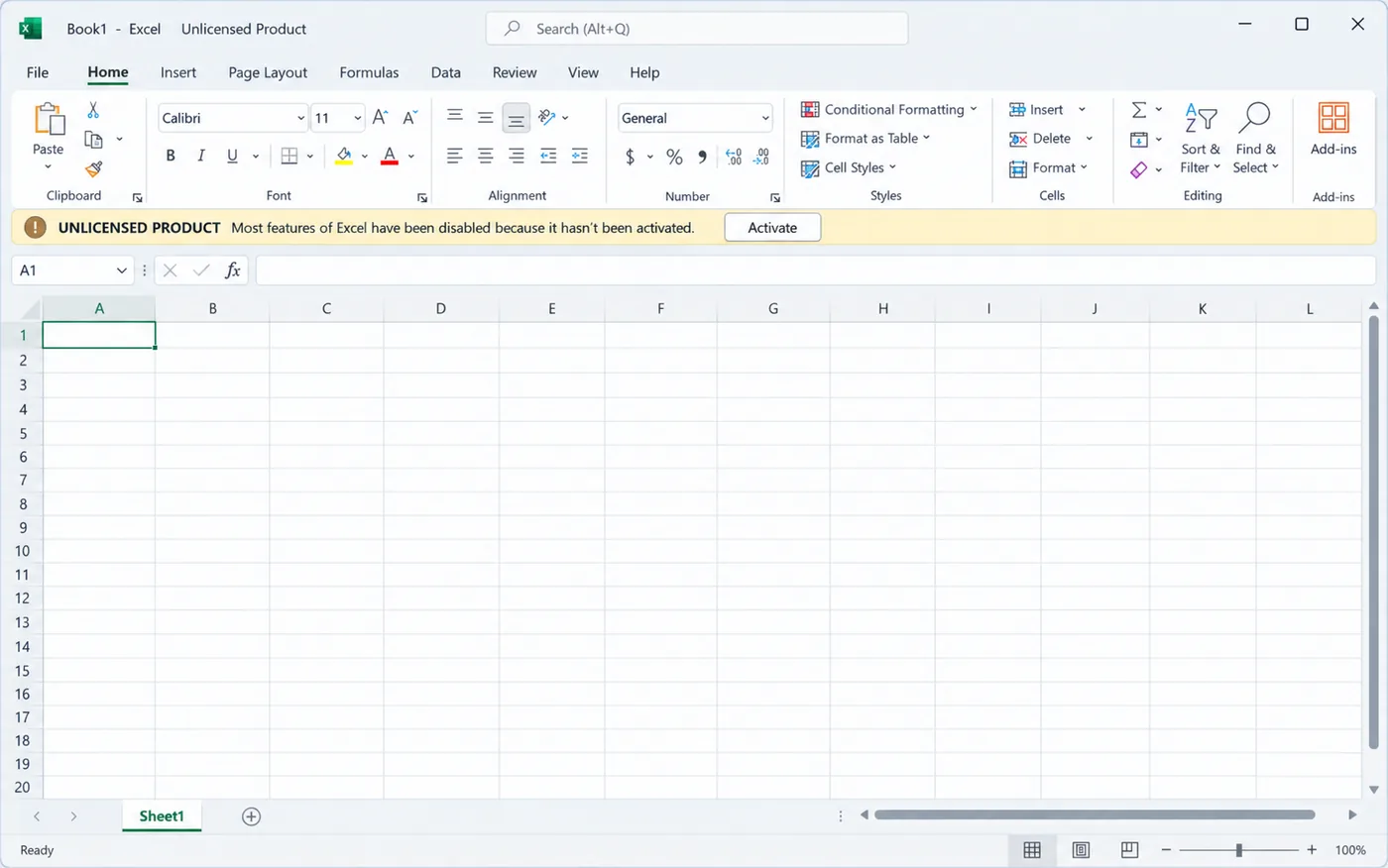
You open Excel or Word and the title bar says “Unlicensed Product” or, in older versions, “Product Activation Failed”. A red or yellow bar may add:
“UNLICENSED PRODUCT: Most features of Excel have been disabled because it hasn’t been activated.”
You can still open and print your files, but you can’t edit them or create new ones until Office is activated. The cause is almost always one of five things, and each one has a quick fix. This guide works for Microsoft 365 and for one-time-purchase Office (2016, 2019, 2021 and 2024).
Excel or Word says "Unlicensed Product" (or "Product Activation Failed" in Office 2010, 2013 and 2016) when Office isn't activated: you can still open and print files, but editing is locked. The most common cause is a second copy of Office, often a preinstalled Microsoft 365 trial. Check which Office you have in File → Account, remove the extra copy, then activate with your product key or the Microsoft account that owns the license.
Watch: fix “Unlicensed Product” step by step
Prefer watching? This video shows the Unlicensed Product message, the five causes and all five fixes, from removing a Microsoft 365 trial to activating with your key and Online Repair.
Watch on the KRBKeys YouTube channel →
Short on time? Watch the short version
The same fix in a quick vertical video made for phones. Open it on YouTube Shorts →
Why do Excel and Word say "Unlicensed Product"?
- Two copies of Office are installed. New laptops often come with a Microsoft 365 trial. When the trial ends, it can override the Office you actually bought. This is the most common cause.
- The trial or subscription ended. Microsoft 365 needs an active subscription.
- You’re signed in with the wrong account, not the one that owns the license.
- The product key was never entered, or it was entered into a different edition (for example a Professional Plus key on Home & Student).
- Office can’t reach Microsoft because of the date and time, a firewall, a VPN or a proxy.
What if Office says “Product Activation Failed”?
“Product Activation Failed” is the same problem with an older label. Office 2010, 2013 and 2016 show it in the title bar of Word, Excel, Outlook and PowerPoint, while newer versions say “Unlicensed Product”. Both mean Office isn’t activated, and the steps below fix both.
- Subscription ended or wrong account: in File → Account, check which account is signed in. Switch to the account that owns the license, or renew the subscription.
- Two versions installed: an older Office 2013 or 2016 next to a Microsoft 365 trial is a common cause. Keep only the one you have a key for (Step 2).
- Office 2016 or 2019: Microsoft ended support for both on October 14, 2025. They keep working, but they no longer get security updates, so it’s worth moving to Office 2021 or 2024.
Step 1: See which Office you have
- Open Excel or Word and go to File → Account (on some versions File → Office Account).
- Under Product Information, note the exact name, for example Microsoft 365 Apps, Office Professional Plus 2021 or Office Home & Business 2019.
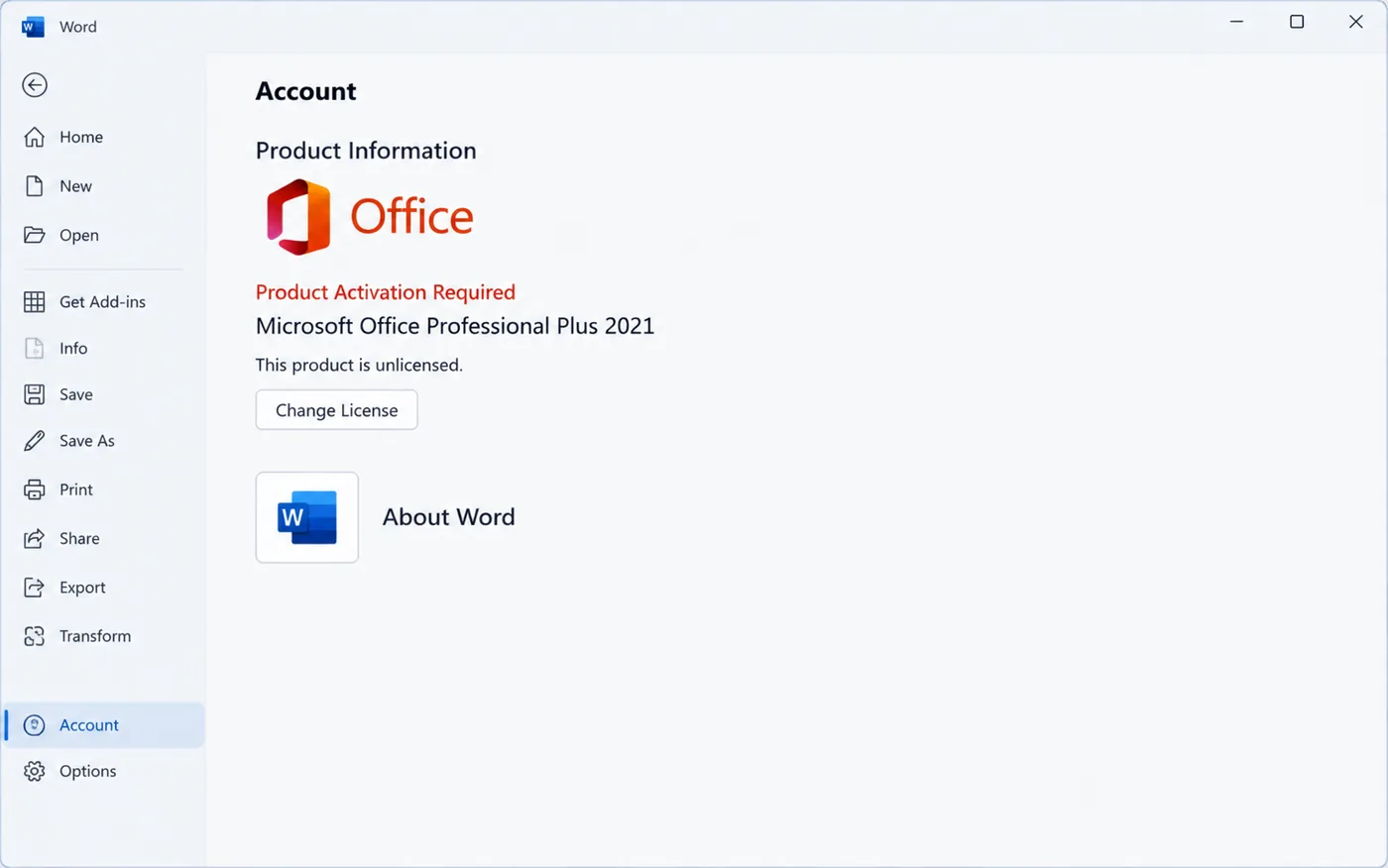
If it shows Microsoft 365 but you bought a one-time Office key, the trial is in the way: go to Step 2.
Step 2: Remove the extra copy of Office
- Press Windows + R, type
appwiz.cpland press Enter. - Search the list for Office and Microsoft 365. Uninstall every copy you don’t use, including trials and other languages.
- Restart the PC and open Excel again.
Step 3: Activate with your key or account
- One-time Office (2016–2024): in Excel go to File → Account and click Activate Product or Change License. When a sign-in window opens, click Enter a product key instead at the bottom and paste your 25-character key.
- Microsoft 365: sign out (File → Account → Sign out), close all Office apps, then open Excel and sign in with the account that owns the subscription. If the subscription has ended, renew it or switch to a one-time Office license.
Key refused? See “This product key is not valid”.
Step 4: Quick checks if it still fails
- Set the date, time and time zone to automatic in Settings → Time & language, then restart Excel.
- Right-click Excel, choose Run as administrator and try activating once more.
- Install the latest Office updates: File → Account → Update Options → Update Now.
- Turn off any VPN or proxy for a moment, and pause third-party antivirus or firewall while you activate. Turn them back on afterwards.
Step 5: Repair Office
- Open
appwiz.cplagain, select your Office, and click Change. - Choose Online Repair, follow the steps, then activate again.
Using Office 2021 or 2024? We have version-specific guides: Office 2021 Unlicensed Product and Office 2024 activation errors.
Tired of trials and subscriptions?
A one-time Office license is yours to keep: no monthly payment, and “Unlicensed Product” never comes back.
- ✔ Office 2021 Professional Plus keys usually arrive within 2–10 minutes
- ✔ Includes Word, Excel, PowerPoint, Outlook and more
- ✔ Free help if activation doesn’t go through
Frequently asked questions
Is “Product Activation Failed” the same as “Unlicensed Product”?
Yes. Older Office versions (2010, 2013 and 2016) say “Product Activation Failed” and newer ones say “Unlicensed Product”. Both mean Office isn’t activated, and the same steps fix them.
Can I still open my files while Office is unlicensed?
Yes. You can open, read and print documents. Editing, saving changes and creating new files are switched off until Office is activated.
Will I lose my documents if I uninstall Office?
No. Uninstalling Office removes the programs only. Your Word and Excel files stay where they are.
Why did this start after a Windows update?
Usually the update didn’t cause it: a Microsoft 365 trial that came with the PC simply expired around the same time. Remove the trial (Step 2) and activate your own Office.
Is Excel “Unlicensed Product” fixed separately from Word?
No. All Office apps share one license. Once Office is activated, Word, Excel and PowerPoint are all fixed together.