


Office 2024 Professional Plus LTSC Activation Error: Causes and Fixes
Office 2024 Professional Plus LTSC Activation Error: Causes and Fixes
If Office 2024 Professional Plus won't activate, the cause is usually something specific: the wrong Office edition installed, a leftover license from an old install, a different Microsoft account than the one you used before, or a key that Microsoft's service no longer accepts. This guide covers each case, starting with the quickest checks.
Get a genuine keyOffice 2024 usually won't activate because the wrong Office edition is installed, an old license or trial is still registered, or the key was mistyped. Check which Office is installed, reinstall from the download link in your delivery email if it doesn't match, and enter the key inside an Office app. If it still fails, sign in with the right Microsoft account, check your connection and clear old license keys.
How Office LTSC 2024 Professional Plus activation works
After installing, you open an Office app such as Word or Excel, go to File → Account, click Change Product Key or Activate, enter your key, and sign in with a Microsoft account when prompted. The product is added to that account, so use one you plan to keep, and sign in with the same one if you ever reinstall.
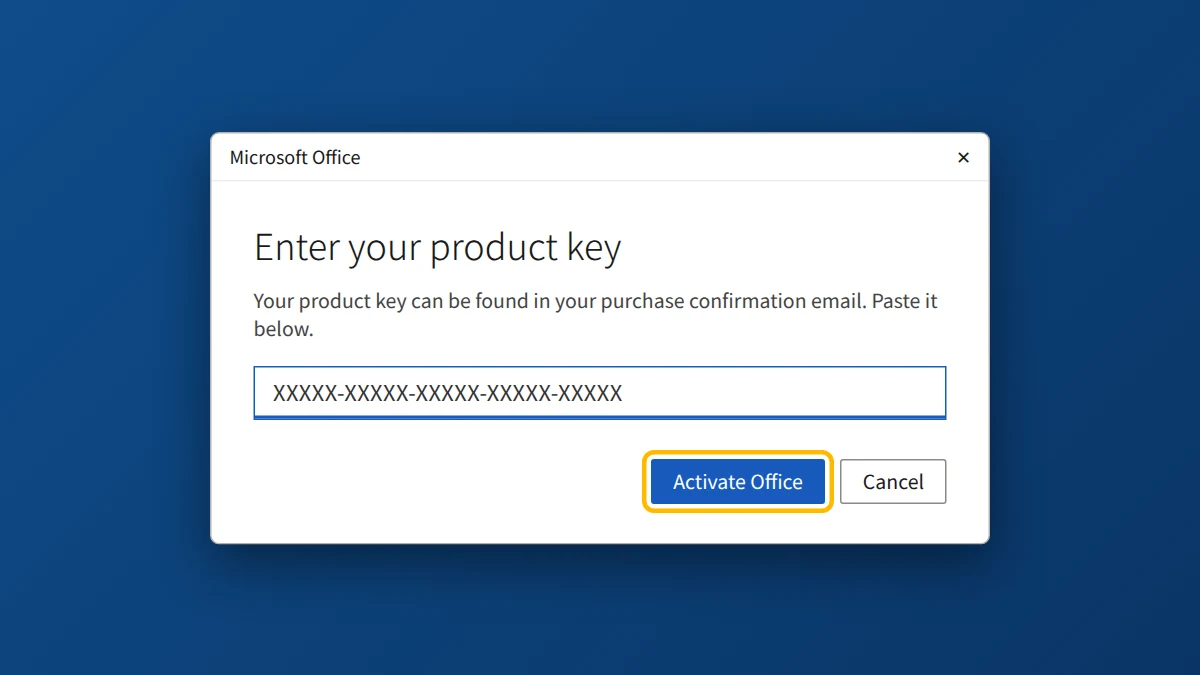
Office 2024 Professional Plus is a separate edition from Microsoft 365 apps and older versions like Office 2021. A key from another Office edition won't activate it, and an installer for another edition won't accept its key.
Why Office LTSC 2024 activation fails
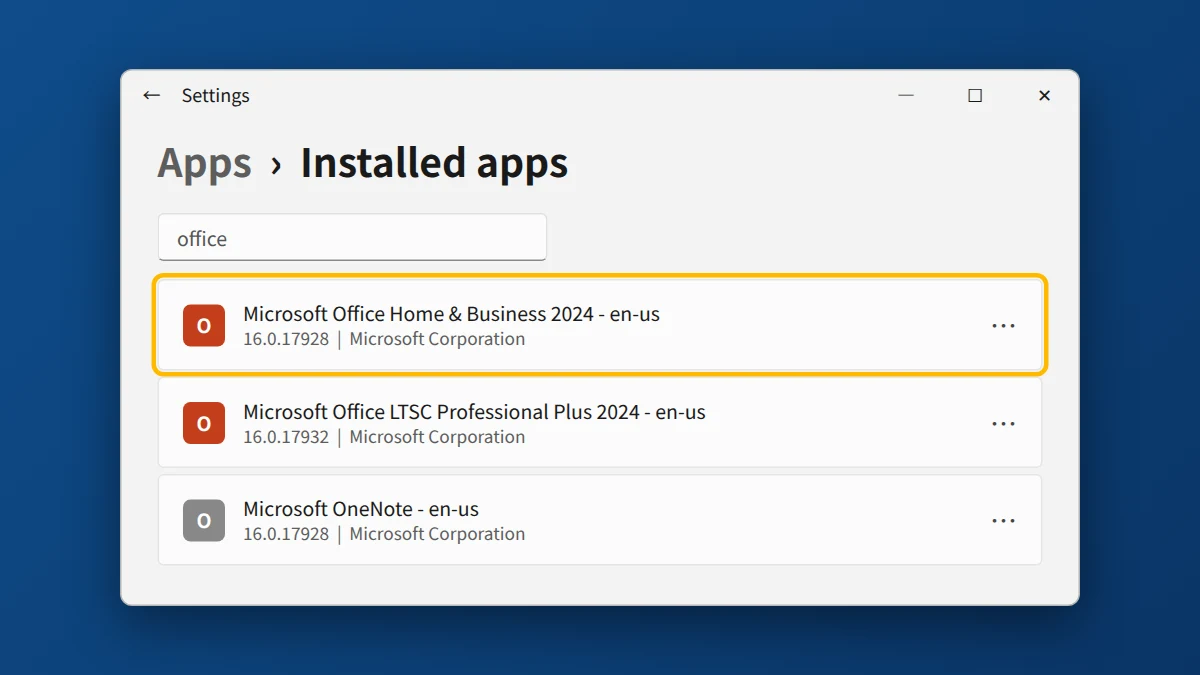
- The wrong Office edition is installed. Office 2021, or a Home and Business 2024 suite, can end up on the PC instead of Professional Plus 2024.
- An old license or trial is still registered. Leftover keys from an earlier Office install can conflict with the new one.
- A typing mistake in the key.
- A different Microsoft account. If the key was already added to another account, activation may be refused.
- A key that has been blocked. Error 0xC004C060 means Microsoft's activation service no longer accepts the key, and it needs to be replaced.
- A connection problem. Online activation needs a working internet connection.
How to fix Office 2024 LTSC activation errors
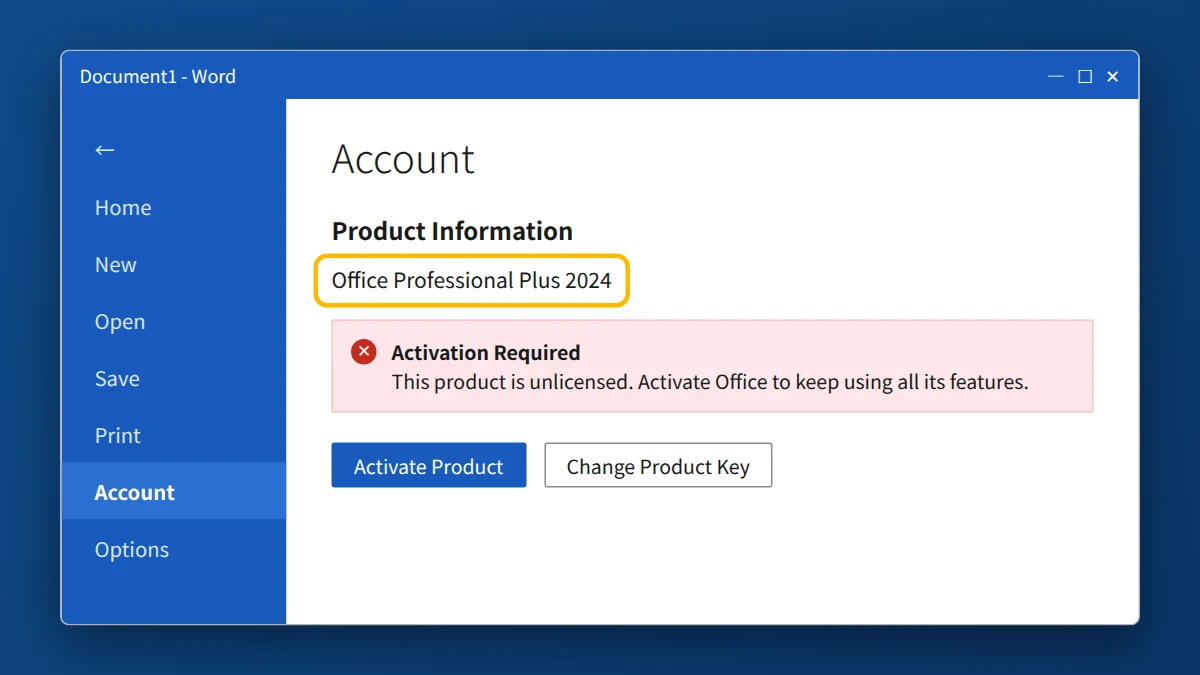
- Check which Office is installed. Open Word, go to File → Account, and look at the product name. It should show Office Professional Plus 2024. If it shows another edition or version, uninstall it in Settings → Apps and restart.
- Reinstall using the download link in your delivery email. Install only this Office edition, and don't install any other Office product on the same PC.
- Enter the key inside an Office app. Open Word or Excel, go to File → Account, click Change Product Key or Activate, and enter the key from your email. Paste it instead of typing.
- Sign in with the right Microsoft account. Use the account you want the product added to. If you reinstalled, use the same account as before.
- Check your connection, restart, and try again. Close all Office apps, restart your PC, and repeat step 3.
- Still failing? Try clearing old license keys below, or contact us.
Advanced: Clear Old License Keys
If an old Office key is still registered on the PC, you can remove it by command line. Only try this if you're comfortable with the Command Prompt.
- Click Start, type cmd, right-click Command Prompt, and choose Run as administrator.
- Go to the Office folder:
cd "C:\Program Files\Microsoft Office\Office16"
For 32-bit Office on 64-bit Windows:cd "C:\Program Files (x86)\Microsoft Office\Office16" - List what's registered:
cscript ospp.vbs /dstatus
Each entry shows the last 5 characters of its key. - Remove any key that isn't yours, replacing XXXXX with its last 5 characters:
cscript ospp.vbs /unpkey:XXXXX - Restart your PC, then enter your key again inside an Office app, as in step 3 above.
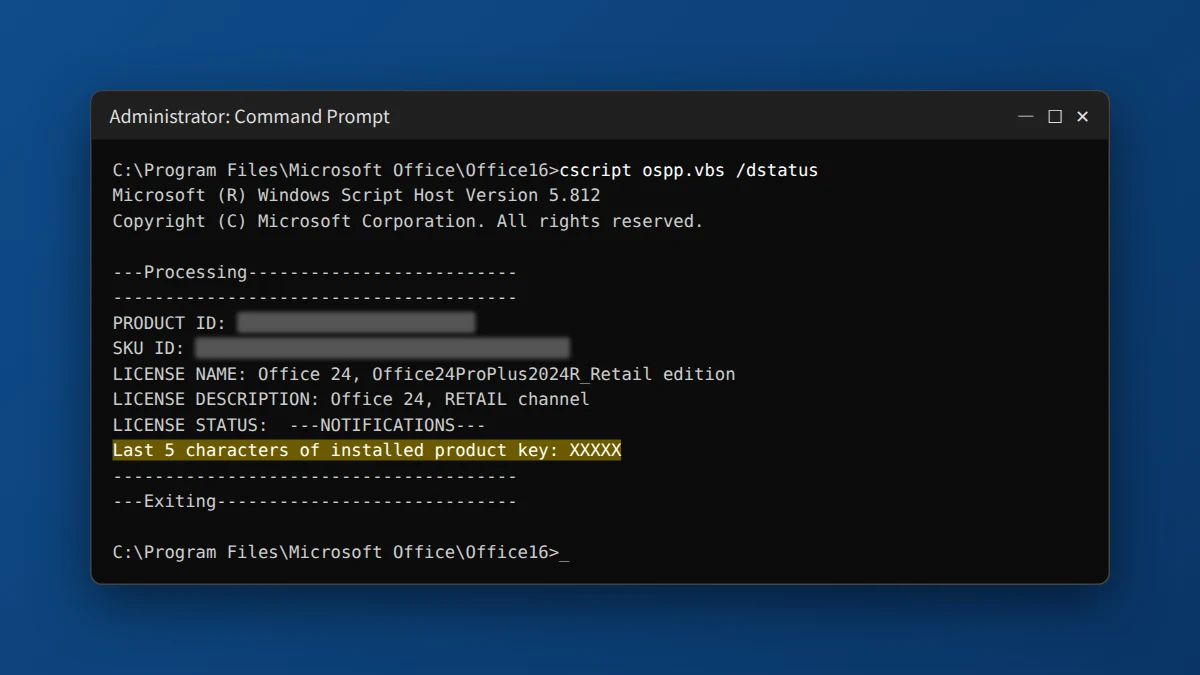
Tip: never post your full product key online or in screenshots. If you need help, send only the last 5 characters.
If You Bought Your Key From KRBKeys
Email support@krbkeys.com, or use Live Chat on our website, with your order number, the exact error message or code, and a screenshot of File → Account. We typically reply within 1–6 hours, and if the key is genuinely invalid or already used, we replace it at no cost.
Need a genuine Office key?
One-time purchase, no subscription. Instant email delivery and a free replacement if activation fails.
Frequently Asked Questions
What does error 0xC004C060 mean?
It means Microsoft's activation service has blocked the key, so it can't be activated anymore. Check the edition and account steps above first, then contact support with your order number for a replacement.
Do I need a Microsoft account and an internet connection?
Yes. Activation adds the product to the Microsoft account you sign in with, and it needs an internet connection. Use the same account if you reinstall.
Can a Microsoft 365 subscription or an Office 2021 key activate Office 2024?
No. Each Office edition needs its own product key.
Why do some apps show a different edition, such as Home and Business 2024?
Another Office edition is probably installed alongside it. Uninstall all Office products, restart, and reinstall only Office Professional Plus 2024.
Can I use one key on more than one PC?
No. This is a one-time purchase for 1 device.
Does it work on a Mac?
No, this edition is for Windows.
I'm seeing error 0xC004C060 in Windows too. Is it related?
The code is the same, but the fix differs. See our Windows 11 guide to 0xC004C060 or our Office 2021 guide.