

How to Fix Office 2024 Error 0-2048 (0): “We couldn’t find the specified configuration file”
Office setup stops with “Couldn’t install” and Office error 0-2048 (0)? Don’t worry, the file is usually fine. Instead, the problem is how you started the command, and it only takes two lines to fix.
Quick answer: fixing Office error 0-2048
Error 0-2048 (0) means Office setup could not open your configuration file. However, in most reported cases the file is fine, and the real problem is how you started the command.
Open Command Prompt as administrator, move into the folder that holds setup.exe, and run the install again:
cd /d C:\Office2024
setup.exe /configure configuration.xml
Change C:\Office2024 to your own folder. If that does not fix it, then work through the steps below in order.
What Office error 0-2048 (0) means
The full message reads: “Couldn’t install. We couldn’t find the specified configuration file. Check the file path and file name.” It appears when you install Office LTSC 2024 with the Office Deployment Tool, the small setup.exe that reads its instructions from an XML file.
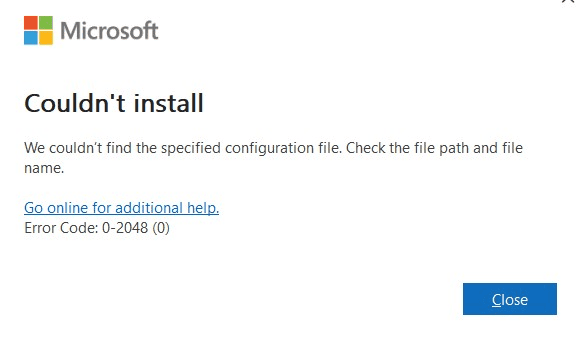
Setup looks for that XML file in the folder the command is running from. Three things usually stop it finding the file:
- You started the command without administrator rights
- You started the command from a different folder, so setup looks in the wrong place
- The file name or type is not what the command asks for, for example configuration.xml.txt
In the first case, the message is misleading. The file exists, but setup still reports it as missing.
Fix 1: Run the install as administrator
This is the fix most people report, because double-clicking setup.exe or using a normal prompt is what triggers the error.
- Press the Windows key and type
cmd. - Right-click Command Prompt and choose Run as administrator.
- Then click Yes on the permission prompt.
- Run the two commands from the Quick answer above.
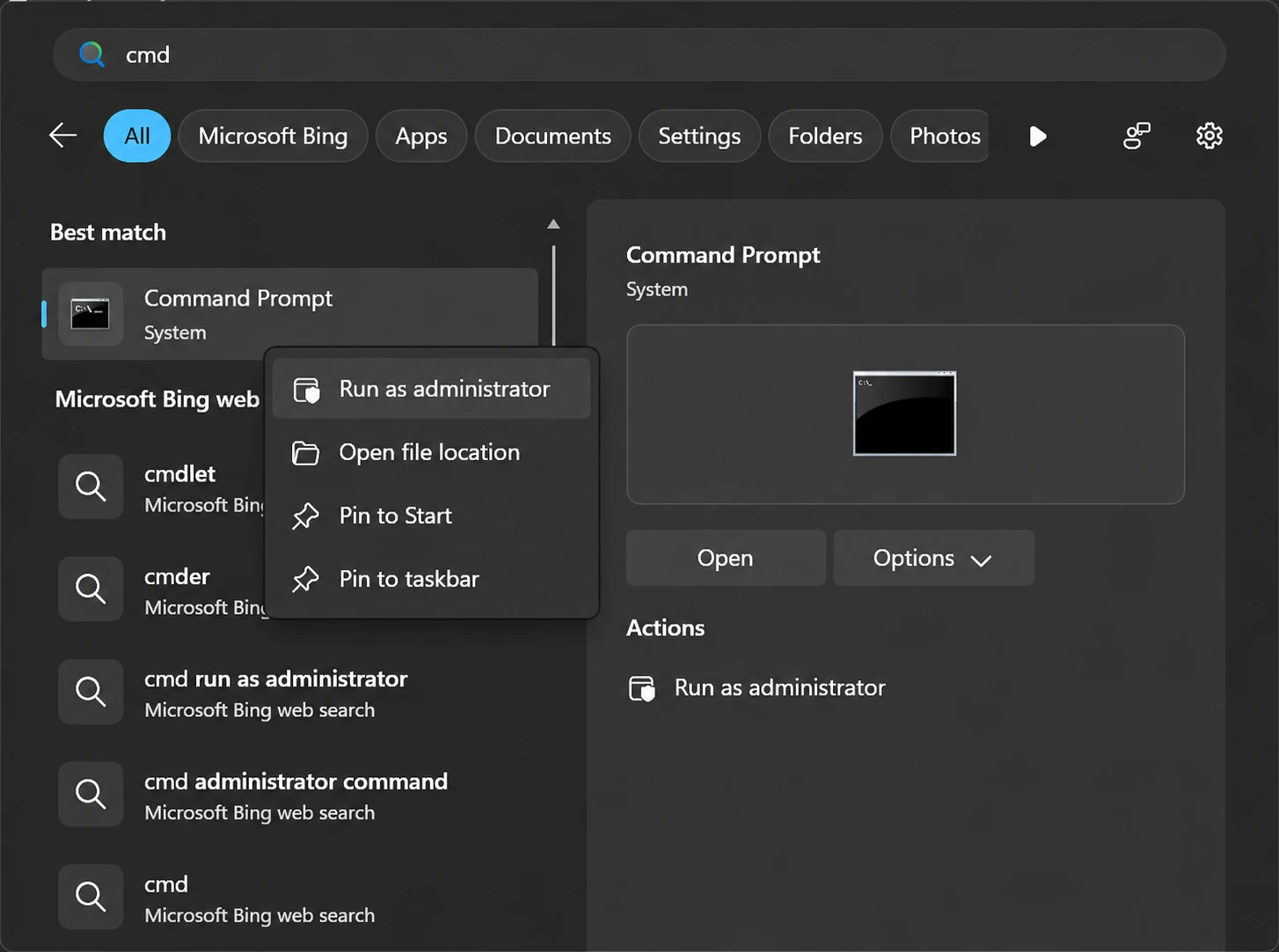
Windows Terminal and PowerShell also work, as long as you open them as administrator. In PowerShell, type .\setup.exe instead of setup.exe.
Fix 2: Start the command inside the setup folder
An administrator prompt opens in C:\Windows\System32, not in your Office folder. So if you run the command from there, setup looks for configuration.xml in System32 and fails with 0-2048.
Move into the folder first with cd /d, then run setup:
cd /d C:\Office2024
setup.exe /configure configuration.xml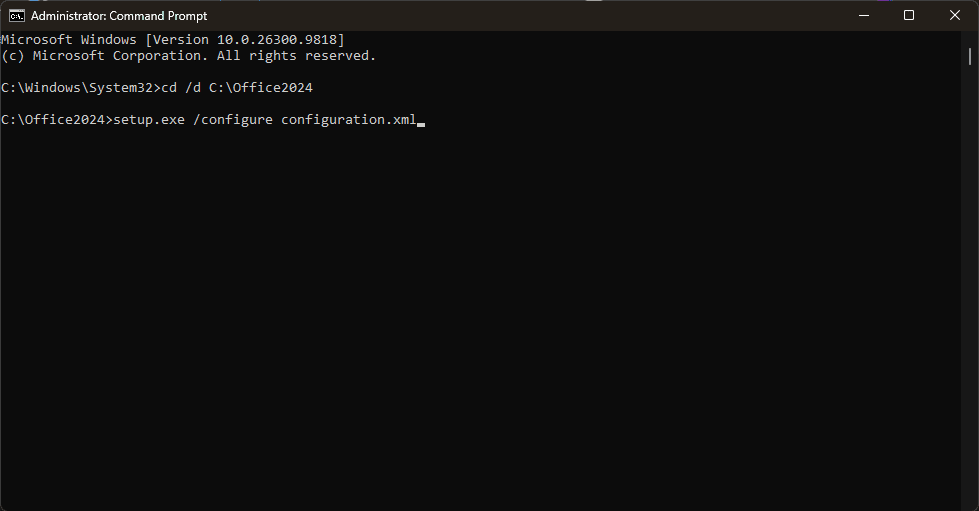
Also, if you install from a batch file, add one line at the top so it always starts in its own folder:
@echo off
cd /d "%~dp0"
setup.exe /configure configuration.xml
Save it next to setup.exe, then right-click the batch file and choose Run as administrator.
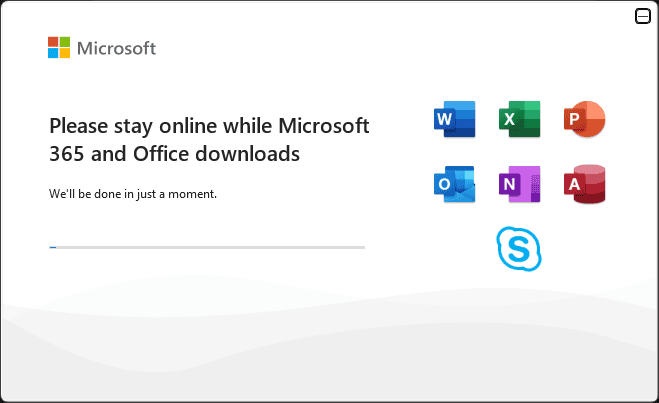
When the fix works, the error is gone and setup starts downloading Office:
Fix 3: Check the configuration file
If the error is still there, the file itself is the next suspect, so check it next.
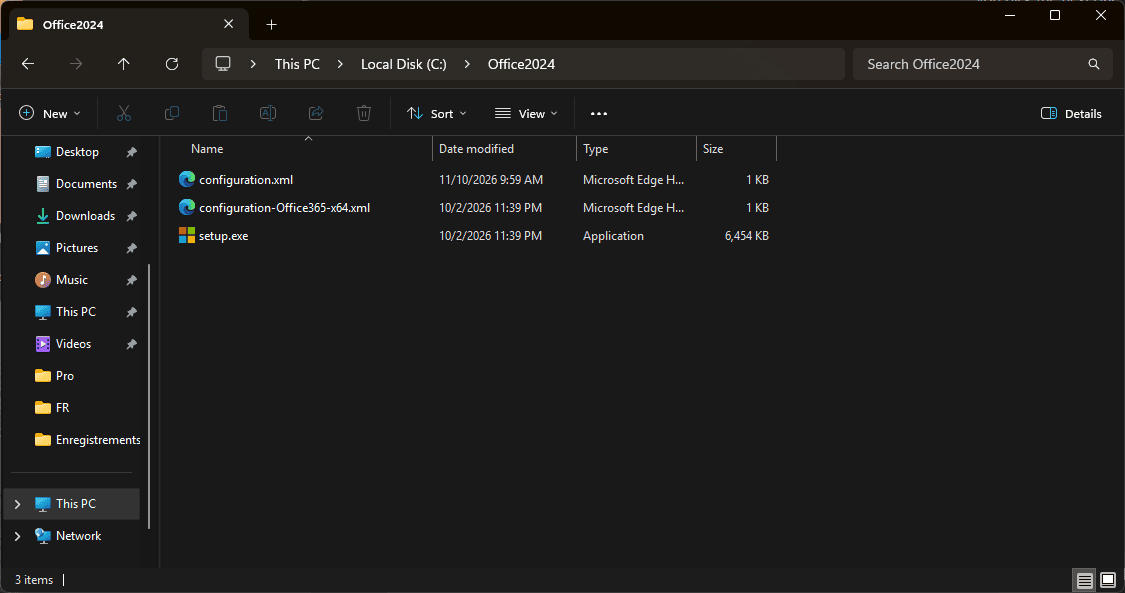
- First, put the file in the same folder as setup.exe.
- In File Explorer, open View > Show and turn on File name extensions. Notepad often saves the file as configuration.xml.txt, which setup cannot find.
- Make sure the name in your command matches the file name exactly.
- Open the file in Notepad and compare it with the sample below. Save it with Encoding: UTF-8.
A minimal file for Office LTSC Professional Plus 2024, 64-bit, English:
<Configuration>
  <Add OfficeClientEdition="64" Channel="PerpetualVL2024">
    <Product ID="ProPlus2024Volume">
      <Language ID="en-us" />
    </Product>
  </Add>
</Configuration>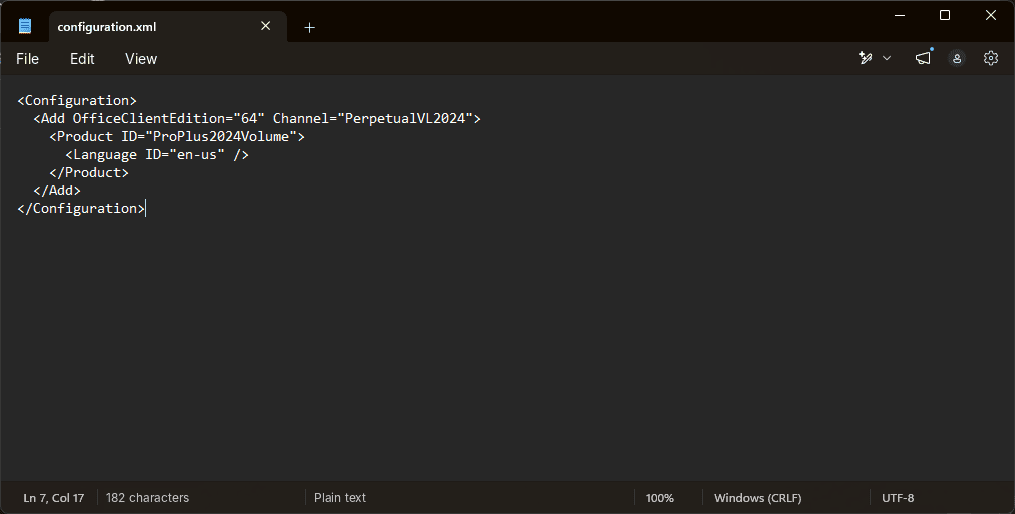
Also, leave out SourcePath unless you downloaded the Office files to another location. Without it, setup uses the folder it is running from.
Fix 4: Installing from a network share
A mapped drive such as Z: often does not exist inside an administrator prompt. As a result, the path to your files breaks. Use the full network path with pushd, which connects to the share and moves into it in one step:
pushd \\Server\Share\Office2024
setup.exe /configure configuration.xml
Replace \\Server\Share\Office2024 with your own share. Alternatively, copy the folder to the local disk and install from there.
If Office error 0-2048 still appears
- Get a fresh copy of the Office Deployment Tool from Microsoft’s download page and extract it into an empty folder. Some users found that one setup.exe build failed with 0-2048 while another build installed normally.
- Download the Office files first, then install. Run
setup.exe /download configuration.xml, wait for it to finish, then runsetup.exe /configure configuration.xmlfrom the same folder. - Remove older Office versions. Office LTSC 2024 does not upgrade Office 2021 in place. Uninstall the old version, restart, and install again.
- Restart the PC if an earlier attempt is still running in the background, then repeat Fix 1 and Fix 2.
FAQ
Is my product key causing Office error 0-2048?
No. In fact, error 0-2048 stops setup before it checks any key. Activation only happens after Office finishes installing.
How is Office error 0-2048 different from 0-2054 (0)?
0-2048 means setup could not find the configuration file you named. 0-2054 usually appears when setup.exe is run with no configuration file given at all. For that one, see the separate guide: how to fix error 0-2054 (0).
Does this apply to Office 2021 and Office 2019?
Yes. Those versions install with the same Office Deployment Tool, so the same fixes apply. Only the Product ID and Channel in the file change.
Can I just double-click setup.exe?
No. On its own, setup.exe has no instructions to follow. It needs the /configure command and a configuration file.
Looking up a different code? See the full list of Office install error codes and what they mean.
Tested on Windows 11 with the Office Deployment Tool, November 2026.
Related guides
- Office error 0-2054 (0): Couldn’t install
- Office error 0-2035 (0): Office is already being installed
- Office error 30015-11 and 0-2031 (17002)
- Office 2024 error 30015-2030 (13)
- Office 2024 error 30015-1015 (13)
- All Office install error codes and what they mean
- Office 2024 LTSC Professional Plus: download and install