

How to Fix Office Error 0-2035 (0): Office Is Already Being Installed
Office error 0-2035 (0) means Office setup thinks another install is still running. Usually it is an earlier attempt that stalled. Here is how to clear it, including the fix for installs that stall when using the Office Deployment Tool.
Quick answer: fixing Office error 0-2035
Microsoft says this error usually appears when another install, update or uninstall was running before you started Office setup. In practice it is often your own earlier attempt, still stuck in the background.
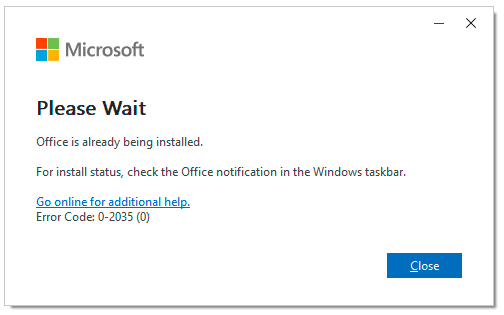
The window reads: “Please Wait. Office is already being installed. For install status, check the Office notification in the Windows taskbar.”
- Look in the system tray, next to the clock, for an Office icon. If an install is running, let it finish.
- If nothing is running, restart the PC and run setup once.
- If it comes back, remove any older Office and install again.
Fix 1: Check for a running install, then restart the PC
Click the small arrow in the system tray and look for an orange Office icon. Clicking it shows the progress of an install that is still going. Wait for it to end before starting another.
If there is no icon, restart the PC. A full restart ends any Office setup process that stalled. Then open Command Prompt as administrator and run the install one time:
cd /d C:\Office2024
setup.exe /configure configuration.xml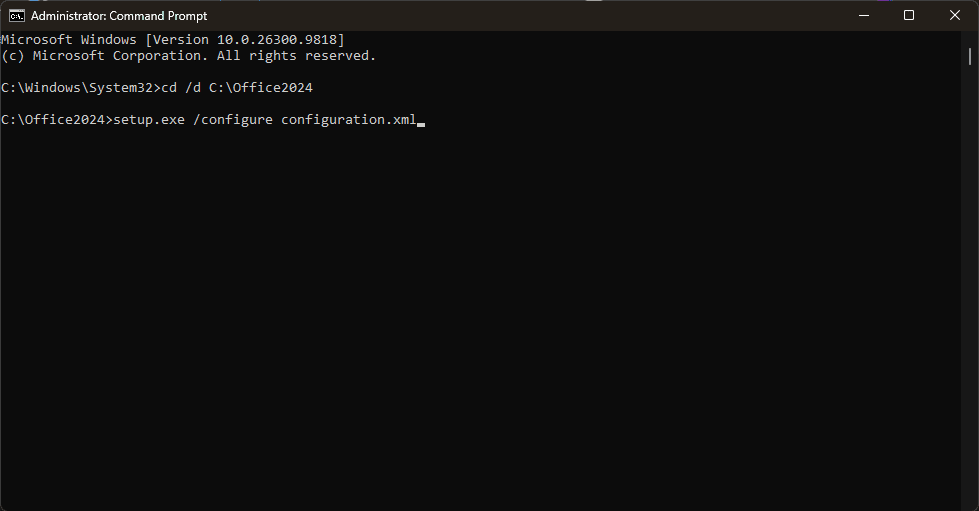
Do not start setup a second time while the first is still loading. Doing that is the quickest way to get 0-2035 again.
Fix 2: Stop setup re-downloading files it already has
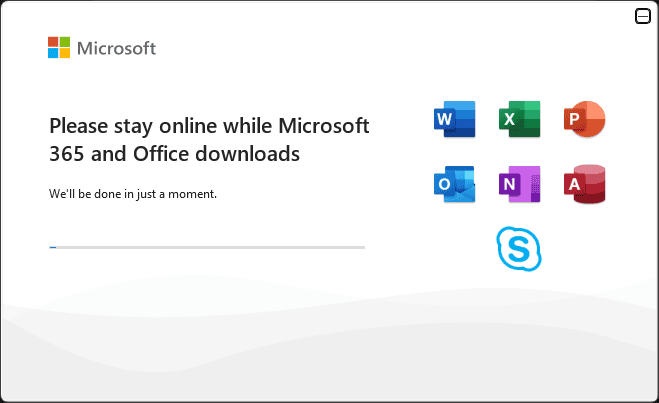
This one applies if you used setup.exe /download first and the install then stalls part of the way through, followed by 0-2035 on the next try.
One administrator found that /configure was ignoring the downloaded files and fetching everything again from Microsoft’s servers, which is where it hung. Telling setup where the downloaded files are fixed it. Add SourcePath to the configuration file, pointing at the folder you downloaded into:
<Configuration>
  <Add SourcePath="C:\Office2024" OfficeClientEdition="64" Channel="PerpetualVL2024">
    <Product ID="ProPlus2024Volume">
      <Language ID="en-us" />
    </Product>
  </Add>
</Configuration>
Restart the PC, then run setup.exe /configure configuration.xml again.
Fix 3: Remove older Office versions
Setup can also stall when another Office product is in the way. In the case above, the install would not start until OneNote and Microsoft 365 were uninstalled.
- Open Settings > Apps > Installed apps.
- Uninstall Microsoft 365, Office, OneNote, Project and Visio entries you are replacing.
- Restart, then install again.
Microsoft’s uninstall troubleshooter can clear older versions that will not uninstall normally. Microsoft notes that it cannot remove Office 2024.
FAQ
Is Office error 0-2035 (0) the same as 2035-0?
Yes. Microsoft lists it as 2035-0 alongside 0-1018 and 17003-2031. All three mean another installation is in progress.
I see Office error 0-2035 and then 0-2054. Which do I fix?
Restart first to clear 0-2035. If 0-2054 then appears, follow the 0-2054 guide.
Is my product key causing Office error 0-2035?
No. Setup stops before it ever checks a key, so the key has nothing to do with it.
Looking up a different code? See the full list of Office install error codes and what they mean.
Related guides
- Office 2024 error 0-2048 (0): configuration file not found
- Office error 0-2054 (0): Couldn’t install
- Office error 30015-11 and 0-2031 (17002)
- Office 2024 error 30015-2030 (13)
- Office 2024 error 30015-1015 (13)
- All Office install error codes and what they mean
- Office 2024 LTSC Professional Plus: download and install