

Office 2024 Error 30015-1015 (13): What to Try When Setup Fails
People report error 30015-1015 (13) when installing Office Professional Plus 2024. Microsoft has not explained it. So this guide covers what forum staff recommend, plus one thing worth checking first: how you are supposed to install that edition.
Quick answer: error 30015-1015 (13)
There is no confirmed fix for 30015-1015 (13) yet. However, Microsoft forum staff suggest that older Office installs, leftover files or a system conflict are behind it. The window itself also gives one lead: it asks you to check the Office installation disk, which points at the install source. Check that first, then remove any existing Office, restart, and install again.
Also check how you are installing. Office Professional Plus 2024 is a volume-licensed edition. You install it with the Office Deployment Tool and a configuration file, not with the web installer from a Microsoft account.
What we know about error 30015-1015
The window says “We’re sorry, we had a problem installing your Office program(s). Please make sure the Office installation disk is inserted.”
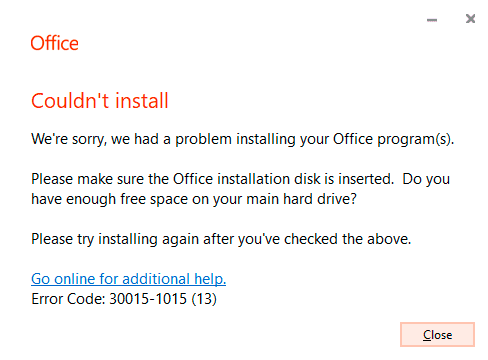
The one thread on Microsoft’s Q&A forum is about the 64-bit Professional Plus 2024 installer. A moderator answered with general advice. However, the person who asked never said whether it worked. Microsoft has no support page for this code.
We will update this page once someone confirms a fix.
Fix 1: Check the install source
The message “Please make sure the Office installation disk is inserted” suggests setup could not read the files it was installing from. That is our reading of the wording, not a confirmed cause, but it is quick to check:
- Installing from an ISO or disk image: make sure Windows still shows it as a drive in File Explorer.
- Installing from a downloaded folder: check that nobody moved the folder or deleted part of it. Also, if it is on a USB stick or network share, copy it to the local disk first.
- Using a configuration file with
SourcePath: check that the path exists and contains the Office folder.
Fix 2: Remove existing Office versions
- Open Settings > Apps > Installed apps, or Control Panel > Programs and Features.
- Then uninstall every Microsoft Office and Microsoft 365 entry.
- Finally, restart the PC and run the install again.
However, uninstalling leaves you without Office until the new install succeeds, so make sure you have your installer and key to hand first.
Fix 3: Install with the Office Deployment Tool
If you were using a web installer, switch to the method Microsoft built this edition for. Download the Office Deployment Tool from Microsoft’s download page, create a configuration file, and run setup from an administrator Command Prompt:
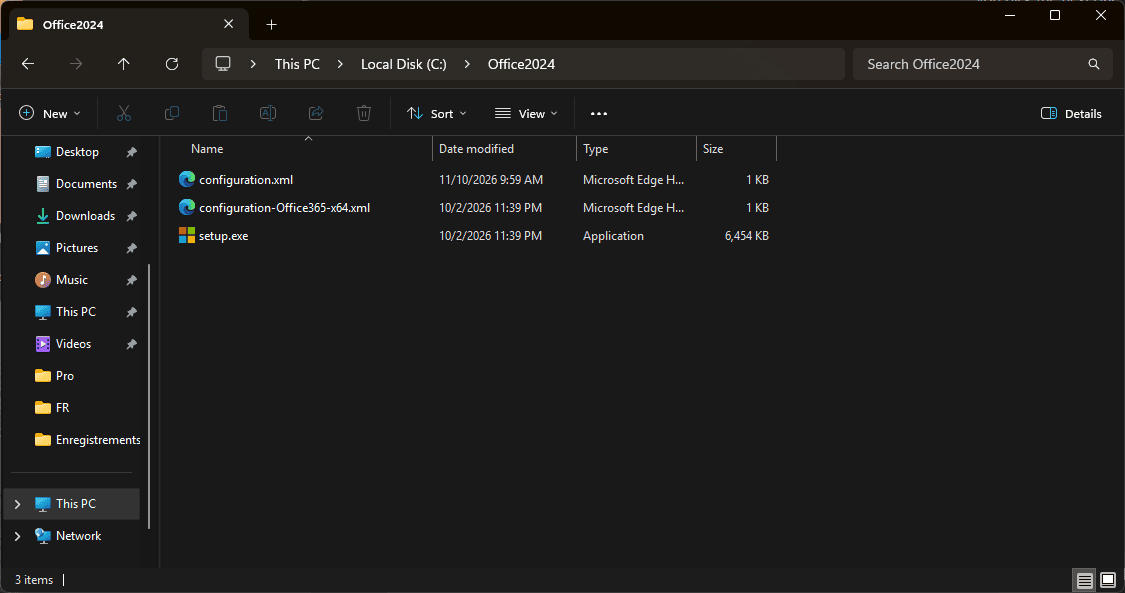
cd /d C:\Office2024
setup.exe /configure configuration.xml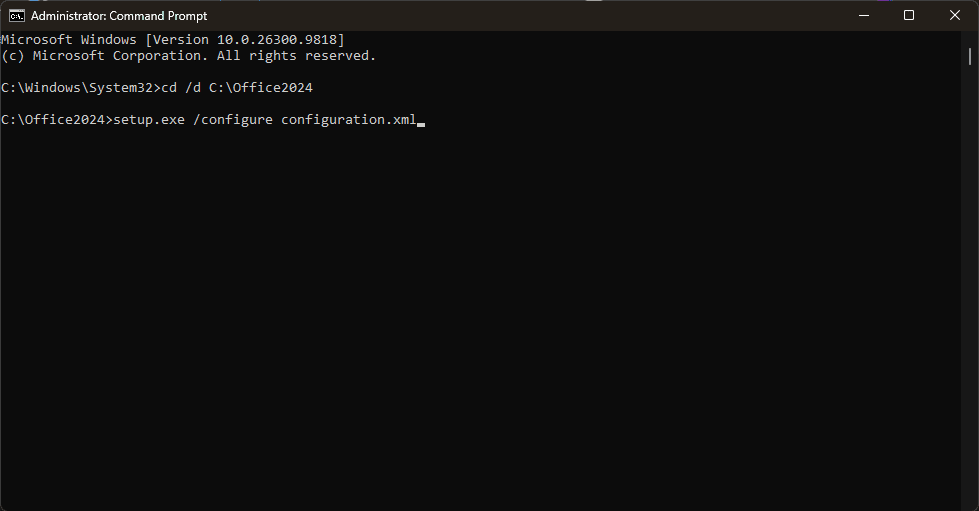
The full steps, including the configuration file, are in our Office 2024 LTSC Professional Plus download guide. If setup then shows a different code, see 0-2048 or 0-2054.
Fix 4: The general steps
- Restart the PC and run setup once.
- Also, run the installer as administrator.
- Pause third-party antivirus and firewall for the length of the install, then turn them back on.
- Free up disk space. After all, Office needs several GB for the download and the install together.
FAQ
Is my product key causing error 30015-1015?
No. The error appears during install, before setup checks any key.
Is error 30015-1015 the same as 30015-2030 (13)?
No, they are separate codes that just share the (13) detail number. See the 30015-2030 guide.
Looking up a different code? See the full list of Office install error codes and what they mean.
Related guides
- Office 2024 error 0-2048 (0): configuration file not found
- Office error 0-2054 (0): Couldn’t install
- Office error 0-2035 (0): Office is already being installed
- Office error 30015-11 and 0-2031 (17002)
- Office 2024 error 30015-2030 (13)
- All Office install error codes and what they mean
- Office 2024 LTSC Professional Plus: download and install