

How to Fix Office Error 0-2054 (0): “Couldn’t install”
Office error 0-2054 (0) is a general failure from the Office Deployment Tool. The window blames your internet connection or disk space. However, the usual cause is how you started setup.
Quick answer: fixing Office error 0-2054
Office error 0-2054 (0) does not point to one cause. It appears when setup.exe cannot start the install you asked for. Most cases come down to one of these:
- You started setup without a configuration file, usually by double-clicking setup.exe
- The update channel in your file does not match an Office product already on the PC
- An older Office version is still on the PC and blocks the new one
So start with the most common one. Open Command Prompt as administrator and run setup with the /configure switch, including the slash:
cd /d C:\Office2024
setup.exe /configure configuration.xml
Read the message above the Office error 0-2054 code
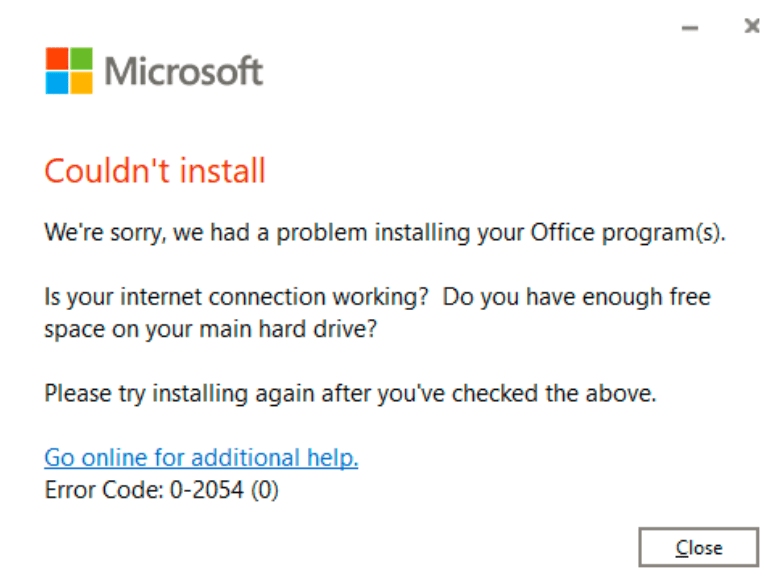
The error window shows a few sentences above “Error Code: 0-2054 (0)”. Match them to the right fix:
| Message in the window | What it means | Go to |
|---|---|---|
| We’re sorry, we had a problem installing your Office program(s). Is your internet connection working? Do you have enough free space on your main hard drive? | The general message. It appears when you double-click setup.exe or run it without /configure, even when the connection and disk space are fine. | Fix 1, then Fix 3 |
| The configuration file wasn’t specified | The same cause, stated directly: you ran setup.exe without /configure and a file name. | Fix 1 |
| Cannot install this product in the selected update channel | The channel in your file conflicts with an Office product already on the PC. | Fix 2 |
Fix 1: Run setup with /configure
The Office Deployment Tool does nothing useful when you double-click setup.exe. Instead, you have to tell it which configuration file to read.
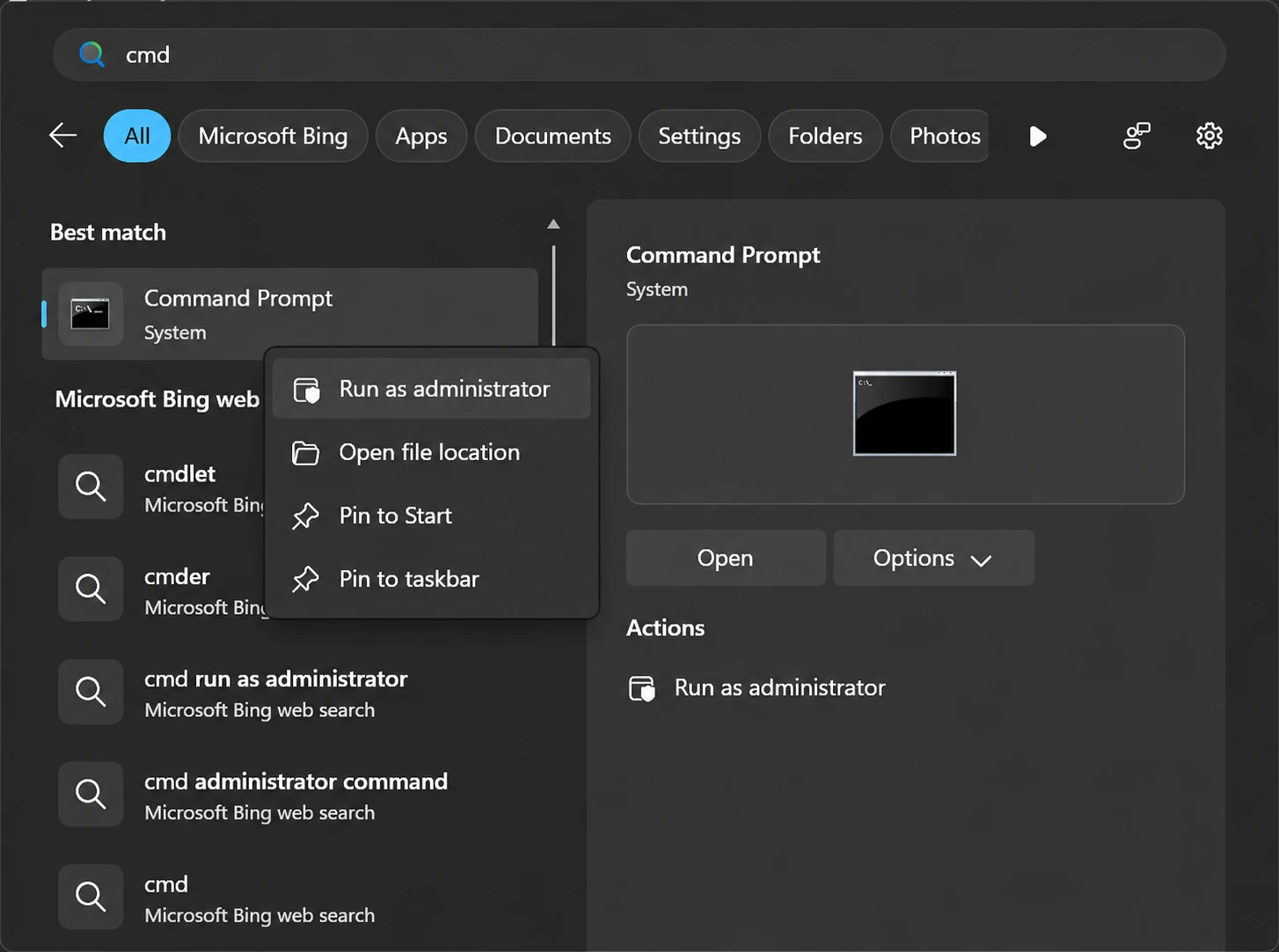
- Press the Windows key, type
cmd, right-click Command Prompt and choose Run as administrator. - Then move into the folder that holds setup.exe and your XML file.
- Run setup with
/configurefollowed by the file name.
cd /d C:\Office2024
setup.exe /configure configuration.xml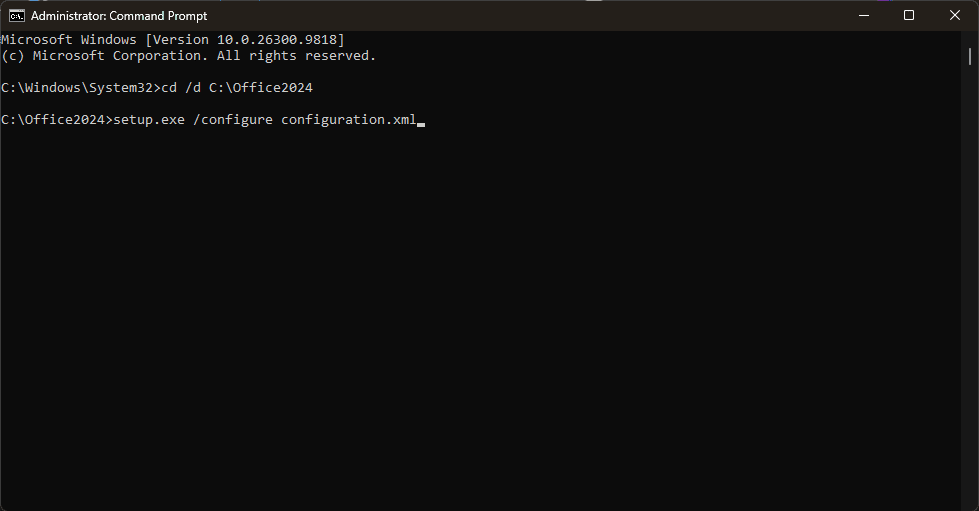
Also, check the slash. setup.exe configure configuration.xml without it fails with the same error. If setup then reports that it cannot find the file, you have moved on to a different error: see how to fix error 0-2048 (0).
Fix 2: Match the update channel
Office products installed with Click-to-Run on the same PC must all use the same update channel. If Microsoft 365, Project or Visio already sits on one channel and your file asks for another, setup stops with “Cannot install this product in the selected update channel”.
What to do depends on what you are installing:
- Office LTSC Professional Plus 2024 or Standard 2024. These suites only install on the
PerpetualVL2024channel. Uninstall the other Office product first, restart, then install. - Project 2024 or Visio 2024 next to Microsoft 365. Set the
Channelin your file to the same channel Microsoft 365 uses, for exampleCurrentorMonthlyEnterprise.
To see which channel an installed Office uses, open any Office app and go to File > Account. You can find the channel name under About.
Fix 3: Remove the older Office first
If you did use /configure and still get the general message, an older Office version, or files left behind by one, is the usual cause.
- Open Settings > Apps > Installed apps, uninstall every Microsoft Office, Microsoft 365, Project and Visio entry, and restart.
- If something will not uninstall, use Microsoft’s Office uninstall support tool, then restart.
- Finally, run the install again from an administrator Command Prompt.
However, if the old version is an MSI install such as volume-licensed Office 2016 or 2013, the tool can remove it for you. Add <RemoveMSI /> to the configuration file:
<Configuration>
  <Add OfficeClientEdition="64" Channel="PerpetualVL2024">
    <Product ID="ProPlus2024Volume">
      <Language ID="en-us" />
    </Product>
  </Add>
  <RemoveMSI />
</Configuration>
If Office error 0-2054 still appears
- Download a fresh Office Deployment Tool from Microsoft’s download page and extract it into an empty folder, then copy your configuration file in.
- Restart the PC so no half-finished Office setup is still running, then try again.
- Pause third-party antivirus or firewall for the length of the install. Turn it back on straight after.
- Check free disk space. Office needs several GB for the download and the install together.
FAQ
How is Office error 0-2054 different from 0-2048 (0)?
0-2054 is a general failure, most often because setup got no configuration file. 0-2048 means you did name a file but setup could not find it. Each has its own guide: this page, and the 0-2048 fix.
Is my product key causing Office error 0-2054?
No. Setup fails before it ever checks a key. Activation only happens once Office finishes installing.
Which Office versions get this error?
Any version installed with the Office Deployment Tool: Office LTSC 2024, Office 2021, Office 2019 and Microsoft 365 Apps.
Where can I look up other Office install codes?
See the full list of Office install error codes and what they mean.
Related guides
- Office 2024 error 0-2048 (0): configuration file not found
- Office error 0-2035 (0): Office is already being installed
- Office error 30015-11 and 0-2031 (17002)
- Office 2024 error 30015-2030 (13)
- Office 2024 error 30015-1015 (13)
- All Office install error codes and what they mean
- Office 2024 LTSC Professional Plus: download and install