

Office 2024 Error 30015-2030 (13): What to Try When Setup Fails
Error 30015-2030 (13) is a newer Office 2024 install error with no official explanation yet. So this guide lists what Microsoft forum staff recommend, in the order that is quickest to try. It also tells you clearly what nobody has confirmed yet.
Quick answer: error 30015-2030 (13)
Nobody has confirmed a single fix for 30015-2030 (13) so far. Microsoft’s forum moderators point to two likely areas: network settings, and permission problems with the folder you run the installer from. So start with the two quick steps:
- Restart the PC.
- Move the installer into a short folder such as
C:\Temp, right-click it and choose Run as administrator.
What we know about error 30015-2030
The window says “We’re sorry, we had a problem installing your Microsoft 365 and Office program(s)” and asks about your internet connection and disk space.
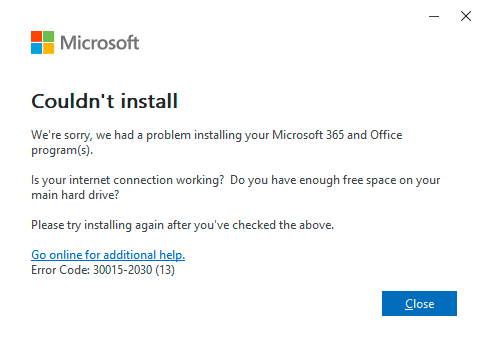
People first reported the code in 2026 on Office 2024 installs. However, Microsoft has no support page for it. The one detailed answer on Microsoft’s Q&A forum comes from a moderator, and the person who asked never reported back, so treat the steps below as informed suggestions, not proven cures.
We will update this page once someone confirms a fix.
Fix 1: Run the installer from a root folder as administrator to clear error 30015-2030
- Create a folder at
C:\Temp. - Then move the Office installer, or the whole offline installer folder, into it.
- Finally, right-click the installer and choose Run as administrator.
Long paths and protected folders such as Downloads or Desktop can cause permission problems. A short root folder, on the other hand, avoids them.
Fix 2: Use the offline installer
The web installer downloads Office while it installs, so a proxy, firewall or unstable connection can break it part of the way through. The offline installer, however, downloads everything first. Also, if you install with the Office Deployment Tool, run setup.exe /download configuration.xml before setup.exe /configure configuration.xml.
Fix 3: Check the network settings
These are the moderator’s network steps. Do them one at a time, and then retry the install after each.
- Enable current TLS versions. Press Windows + R, type
inetcpl.cpl, open the Advanced tab and make sure TLS 1.2 and TLS 1.3 are ticked. - Try a public DNS server. In your network adapter’s IPv4 properties, set the DNS servers to
8.8.8.8and8.8.4.4. - Reset the network. Go to Settings > Network & Internet > Advanced network settings > Network reset. However, this removes saved Wi-Fi networks and VPN connections, so have your Wi-Fi password ready and treat it as the last resort.
Fix 4: Remove older Office and repair Windows files
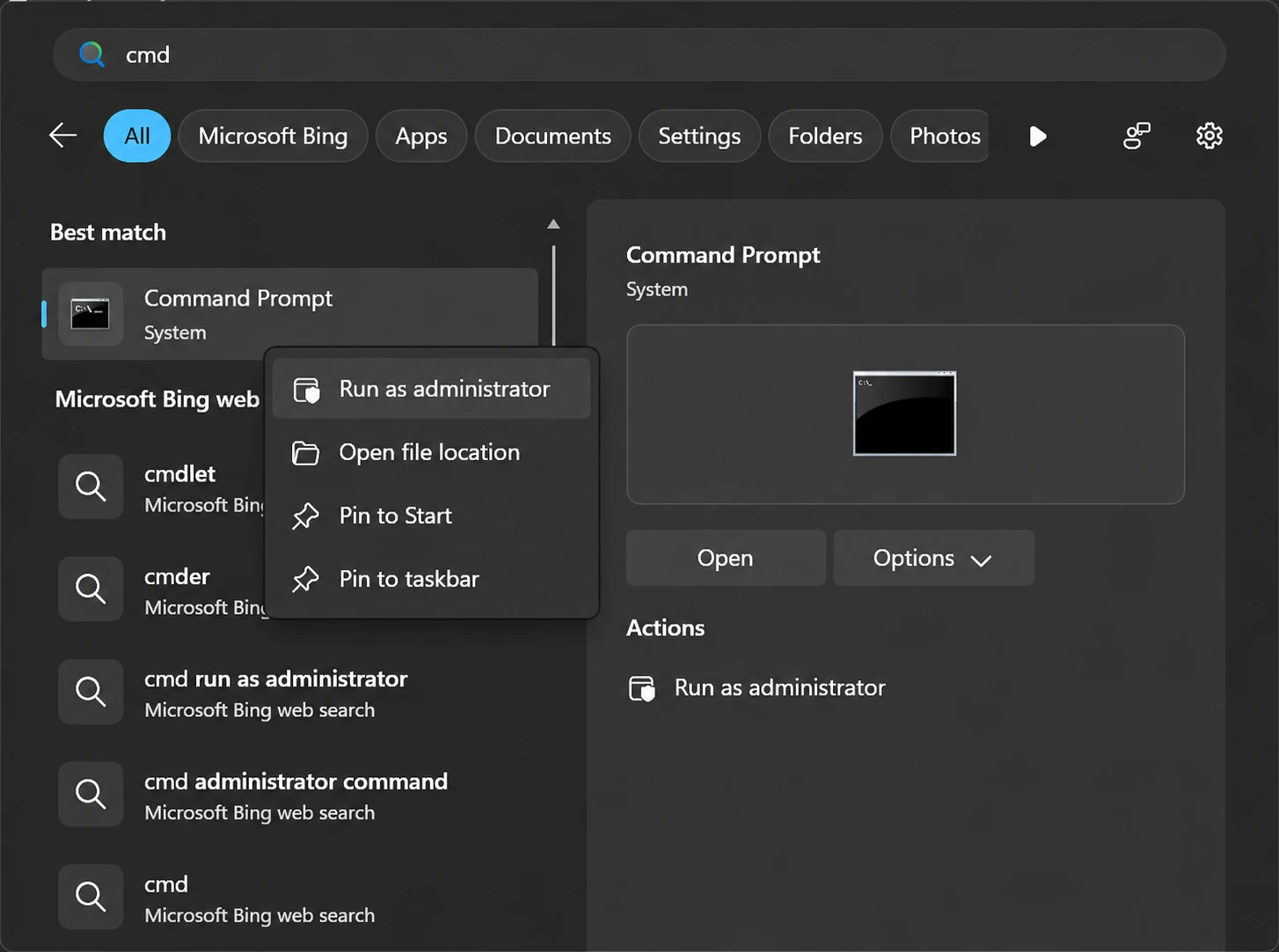
Uninstall any existing Office in Settings > Apps > Installed apps and restart. If the error still appears, then open Command Prompt as administrator, run sfc /scannow, let it finish, and try the install again.
FAQ
Is my product key causing error 30015-2030?
No. The error appears during install, before setup checks any key.
Does the (13) after error 30015-2030 matter?
It is an internal detail code. For example, the related error 30015-1015 also shows (13). See the 30015-1015 guide.
Looking up a different code? See the full list of Office install error codes and what they mean.
Related guides
- Office 2024 error 0-2048 (0): configuration file not found
- Office error 0-2054 (0): Couldn’t install
- Office error 0-2035 (0): Office is already being installed
- Office error 30015-11 and 0-2031 (17002)
- Office 2024 error 30015-1015 (13)
- All Office install error codes and what they mean
- Office 2024 LTSC Professional Plus: download and install