

How to Fix Office Error 30015-11 and 0-2031 (17002)
Office error 30015-11 usually appears near the end of an Office install, often followed by 0-2031 (17002). Microsoft has not published a single cause. So this guide gives the fixes in the order most likely to help.
Quick answer: Office error 30015-11 and 0-2031
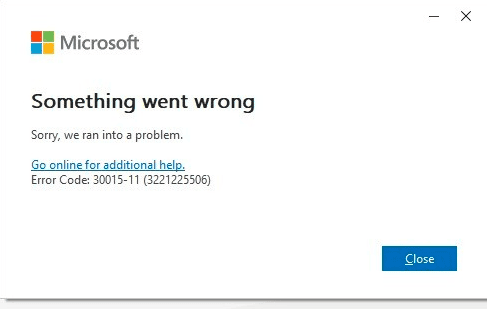
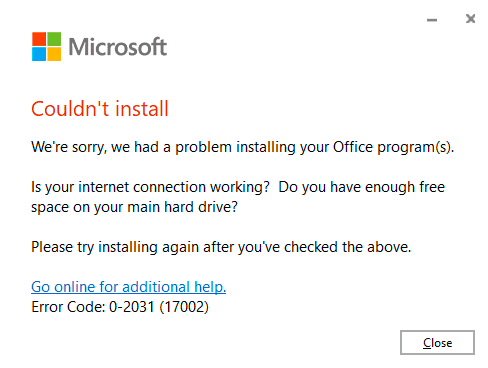
The two messages come as a pair: “Sorry, we ran into a problem. Error Code: 30015-11”, then “We had a problem installing your Office program(s)” with Error Code: 0-2031 (17002). In most reports, the install runs most of the way, often past 90%, before it fails.
First, if you are installing Office LTSC 2024 on a PC that already has Office LTSC 2021, start there. That’s because the 2024 version does not upgrade 2021 in place. Uninstall the old version, restart, then install.
What we know about Office error 30015-11
There is no official Microsoft page for 30015-11. On Microsoft’s own forums, staff recommend removing existing Office and reinstalling, and none of the threads we read ends with one confirmed cure. Also, the second message asks about your internet connection and disk space even when both are fine, so do not take that wording literally.
The steps below are ordered from the most often recommended to the least. Then try the install again after each one.
Fix 1: Remove existing Office, then install
- Open Settings > Apps > Installed apps.
- Uninstall every Microsoft Office, Microsoft 365, Project and Visio entry.
- Restart the PC.
- Run the install again from an administrator Command Prompt.
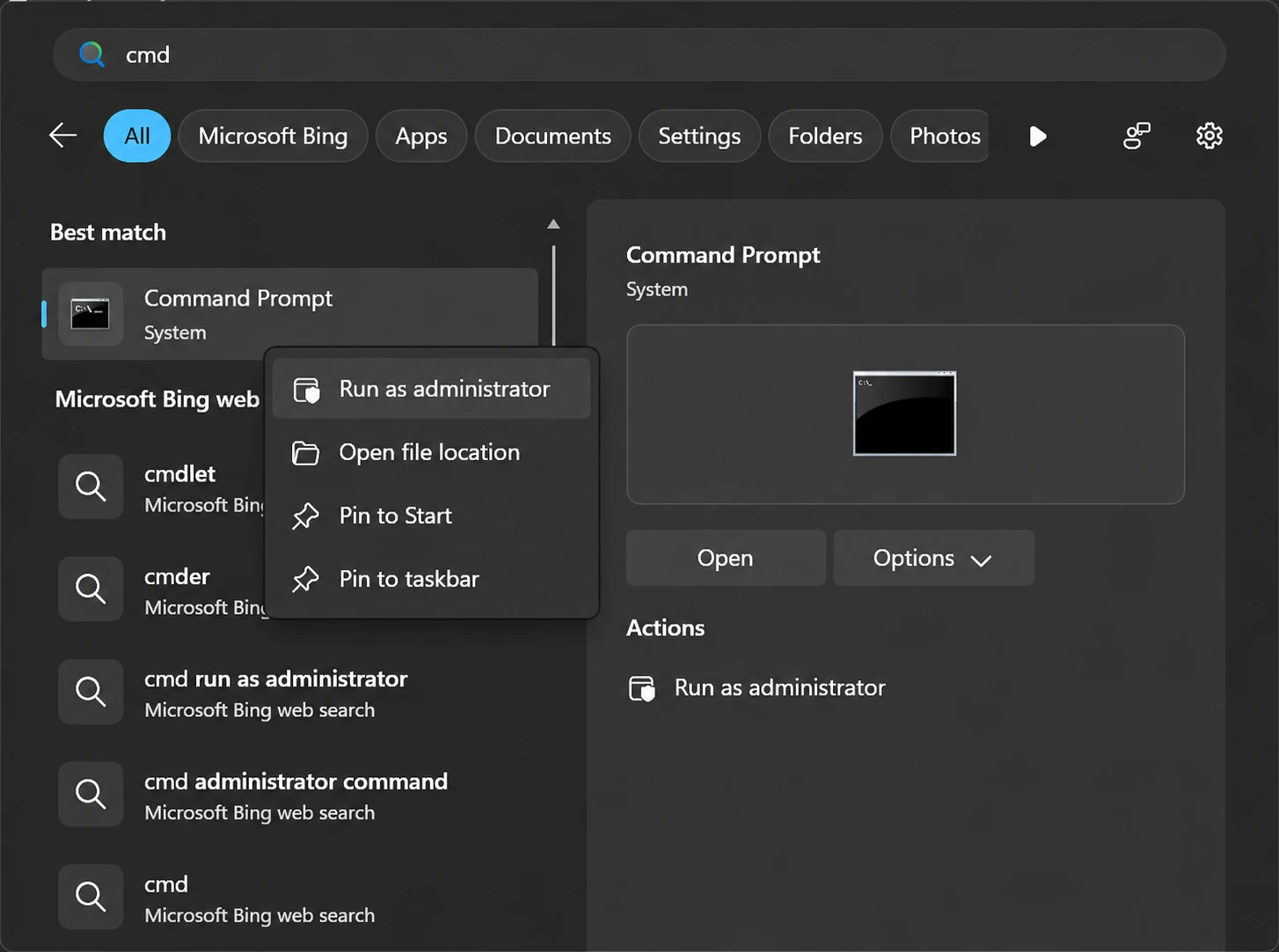
If an old version will not uninstall, use Microsoft’s Office uninstall steps and troubleshooter, then restart.
Fix 2: Restart and pause security software
Save your work and restart the PC completely, not sleep or sign out. Then pause any third-party antivirus or firewall for the length of the install and turn it back on straight after. After all, several forum reports had the install fail at the very end, which is where security software tends to step in.
Fix 3: Install from local files
If you are using Microsoft’s web installer, switch to the offline installer so a weak connection cannot interrupt the download. On the other hand, if you are using the Office Deployment Tool, download the files first and install from the same folder:
cd /d C:\Office2024
setup.exe /download configuration.xml
setup.exe /configure configuration.xml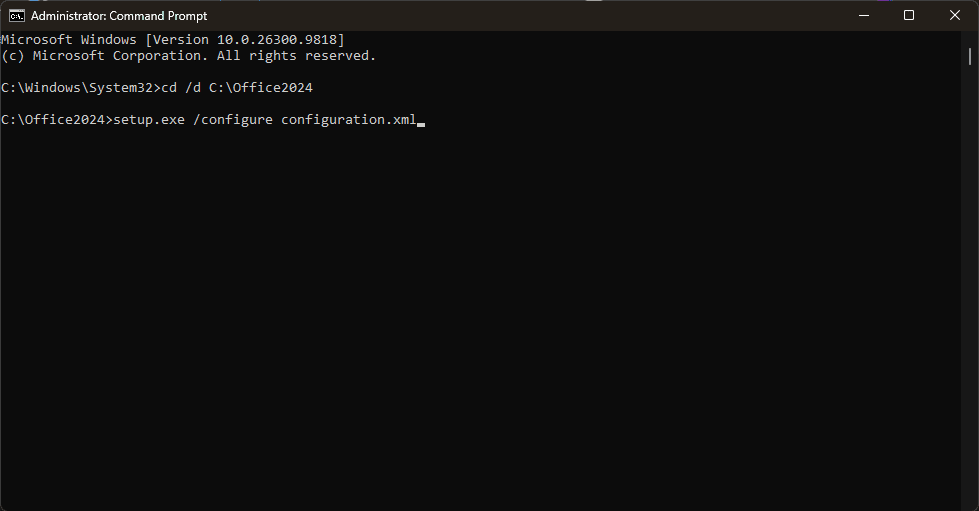
Fix 4: Try a new administrator account
Microsoft forum staff suggest creating a new local Windows account with administrator rights and running the install from there. If it works in the new account, then the problem is in your Windows profile and not in Office. If it fails there too, the cause is on the system side, and a repair of Windows system files with sfc /scannow is the next step.
FAQ
What do the numbers in brackets after Office error 30015-11 mean?
They are internal detail codes and vary between PCs. For example, people report 30015-11 with (3221225506), (3221356598) and others. Search by the first part of the code.
Is my product key causing Office error 30015-11?
No. The install fails before Office checks any key.
Looking up a different code? See the full list of Office install error codes and what they mean.
Related guides
- Office 2024 error 0-2048 (0): configuration file not found
- Office error 0-2054 (0): Couldn’t install
- Office error 0-2035 (0): Office is already being installed
- Office 2024 error 30015-2030 (13)
- Office 2024 error 30015-1015 (13)
- All Office install error codes and what they mean
- Office 2024 LTSC Professional Plus: download and install